📚Table of Contents
🎉Welcome to KaryoSetu!
KaryoSetu connects you with local service providers in your area. Whether you need:
- 🔧 Services - Plumber, Electrician, Carpenter, Mechanic
- 🏠 Rentals - Rooms, Houses, Equipment, Vehicles
- 🛒 Products - Local goods and items
- 💼 Work Opportunities - Jobs and gigs
KaryoSetu makes it easy to find, book, and pay for local services - all in your preferred language!
🌟 Key Features:
- ✅ Voice Search - Search in Hindi, Marathi, or your local language
- ✅ Multilingual - Available in 16 Indian languages
- ✅ Location-Based - Find services near you
- ✅ Direct Chat - Talk directly with providers
- ✅ Easy Booking - Book services in seconds
- ✅ Secure - Safe and verified providers
🚀Getting Started
Step 1: Download & Install
- Download KaryoSetu from Google Play Store
- Install the app on your Android phone
- Open the app
Splash Screen
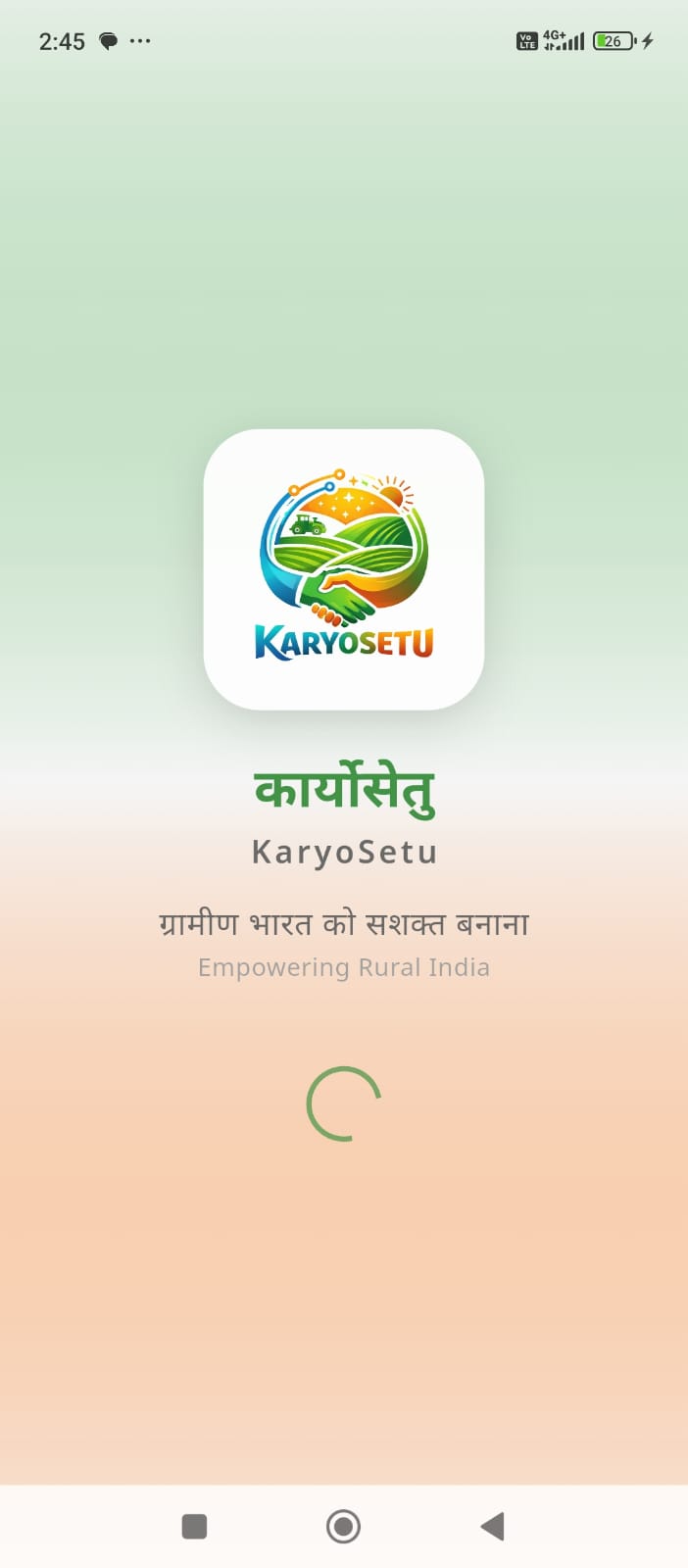
Welcome Screen
Step 2: Sign Up / Login
📱 First Time User - Sign Up:
1
Open KaryoSetu app - You'll see the Welcome Screen
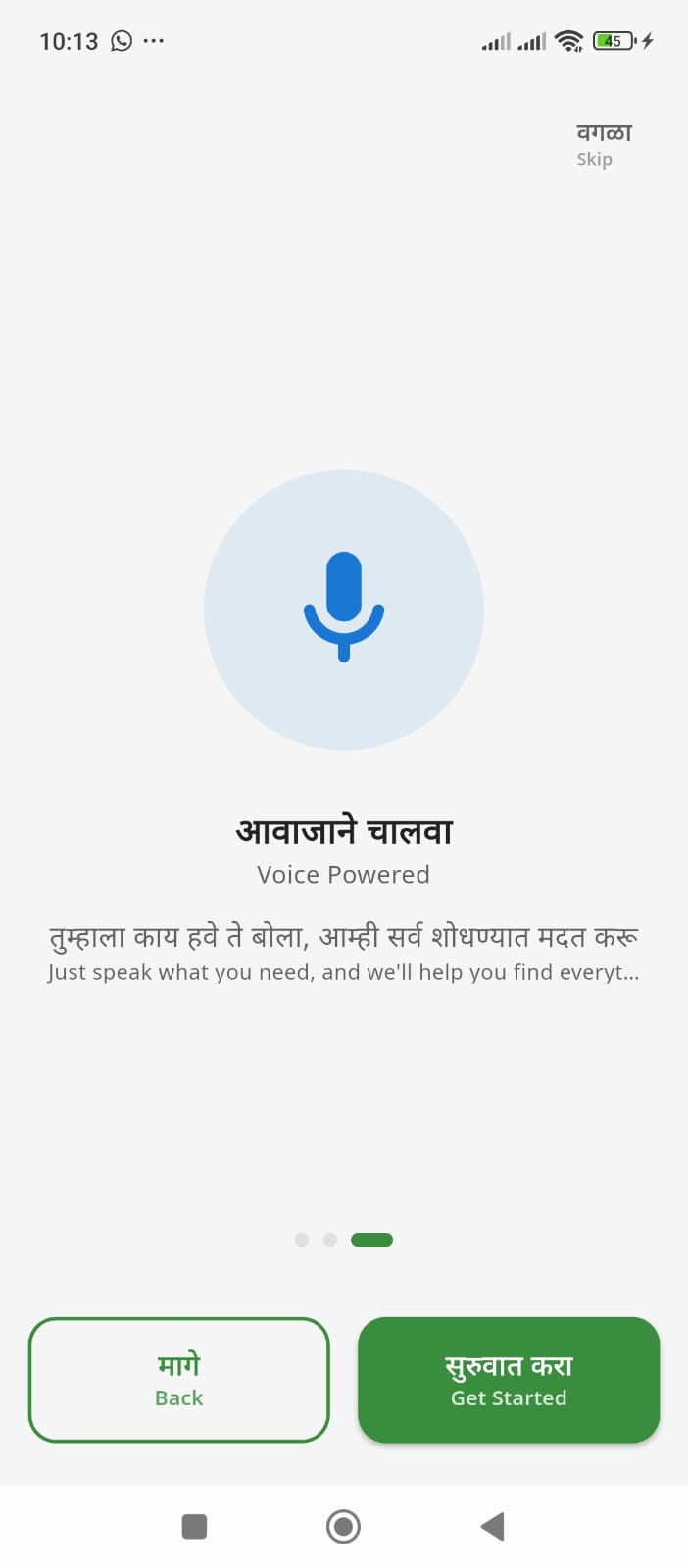
Onboarding Screen 1
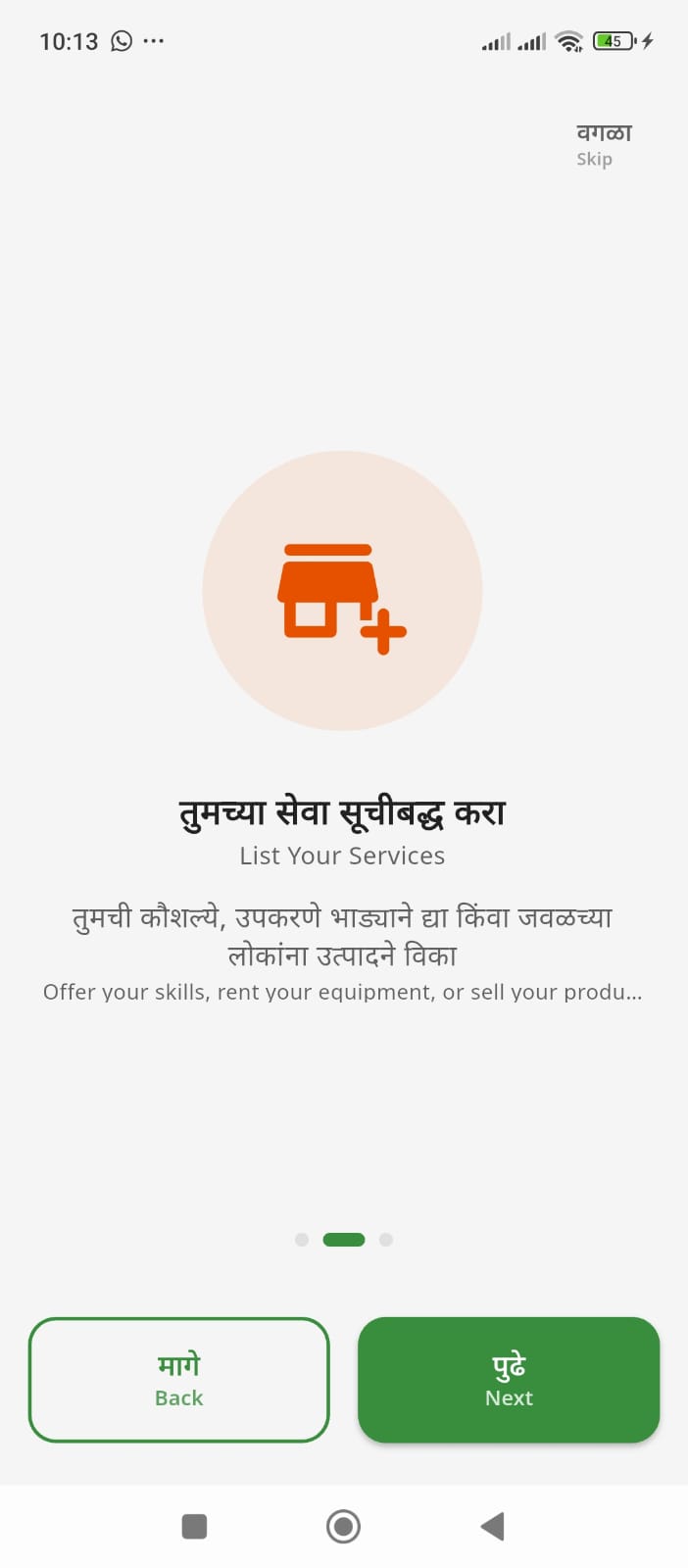
Onboarding Screen 2
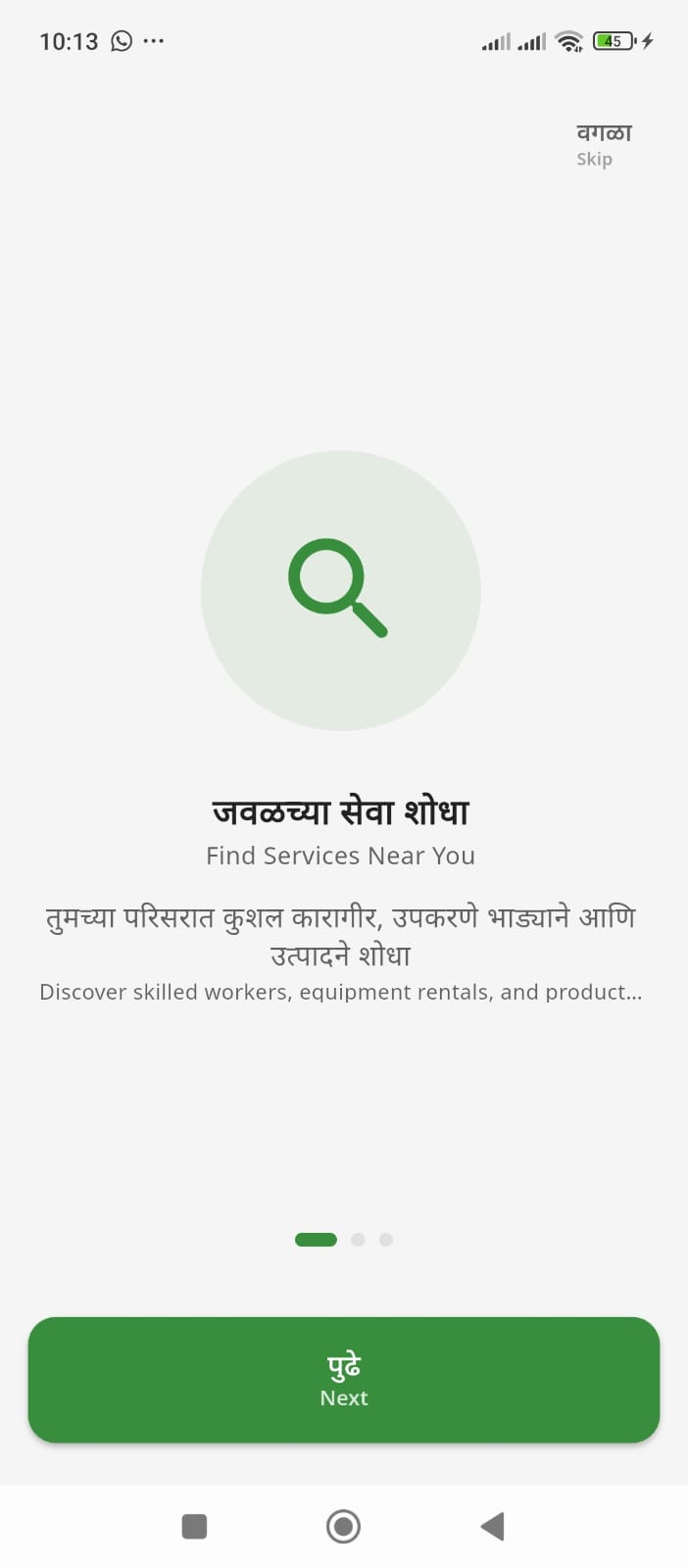
Onboarding Screen 3
2
Choose your language - Select from 16 Indian languages
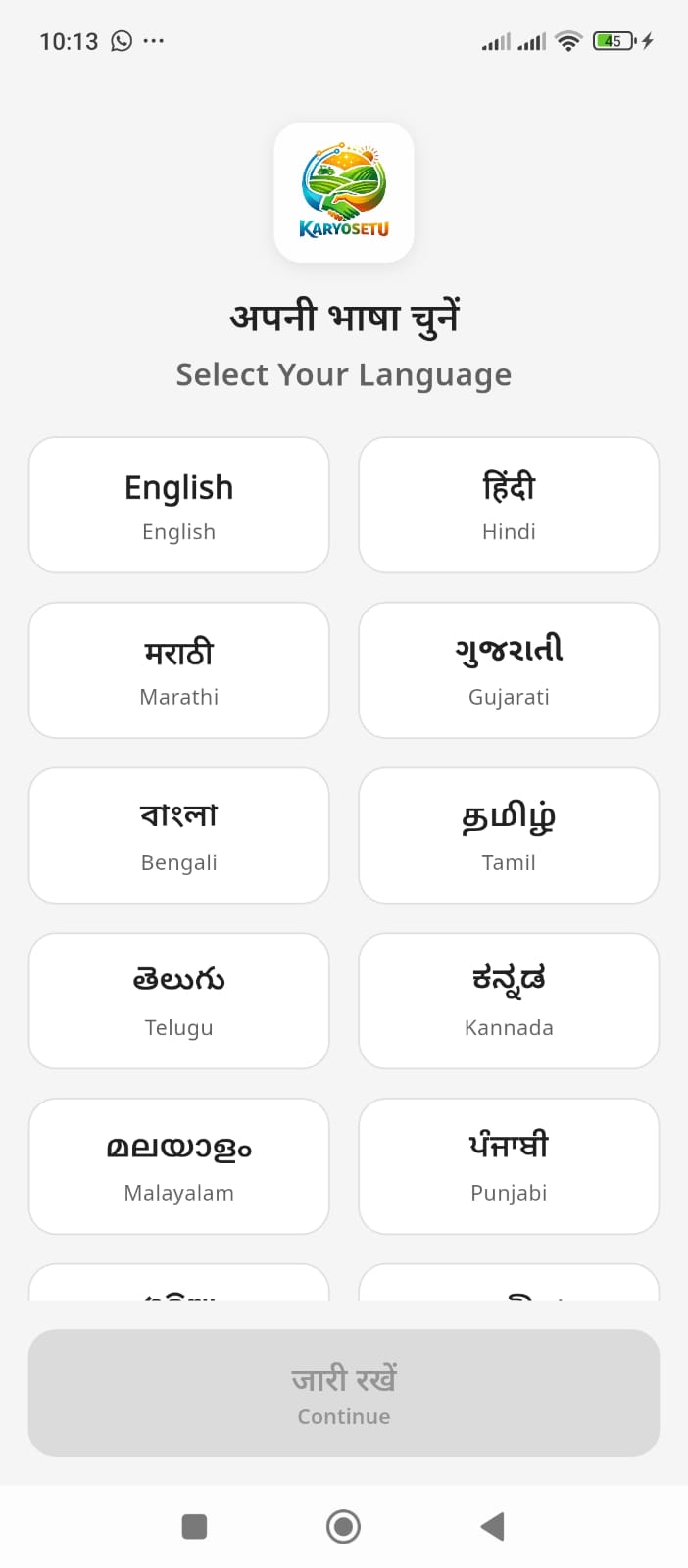
Choose your preferred language
3
Enter mobile number - Type your 10-digit number (e.g.,
9876543210)
4
Verify OTP - Enter the 6-digit code received via SMS
🔐 Returning User - Login:
- Open KaryoSetu app
- Enter your registered mobile number
- Click "Send OTP"
- Enter the OTP received via SMS
- Click "Verify" - You're logged in!
Step 3: Complete Your Profile
After first login, complete your profile:
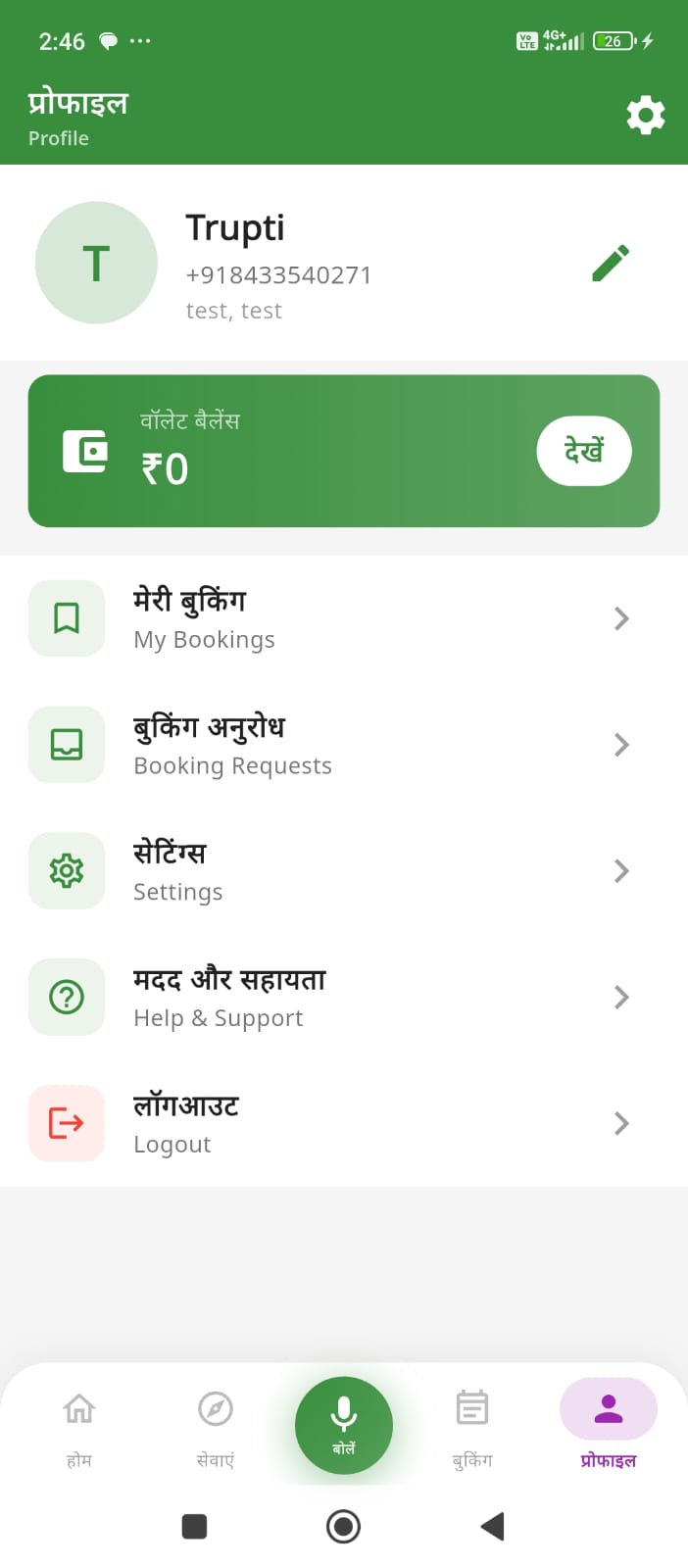
Your Profile
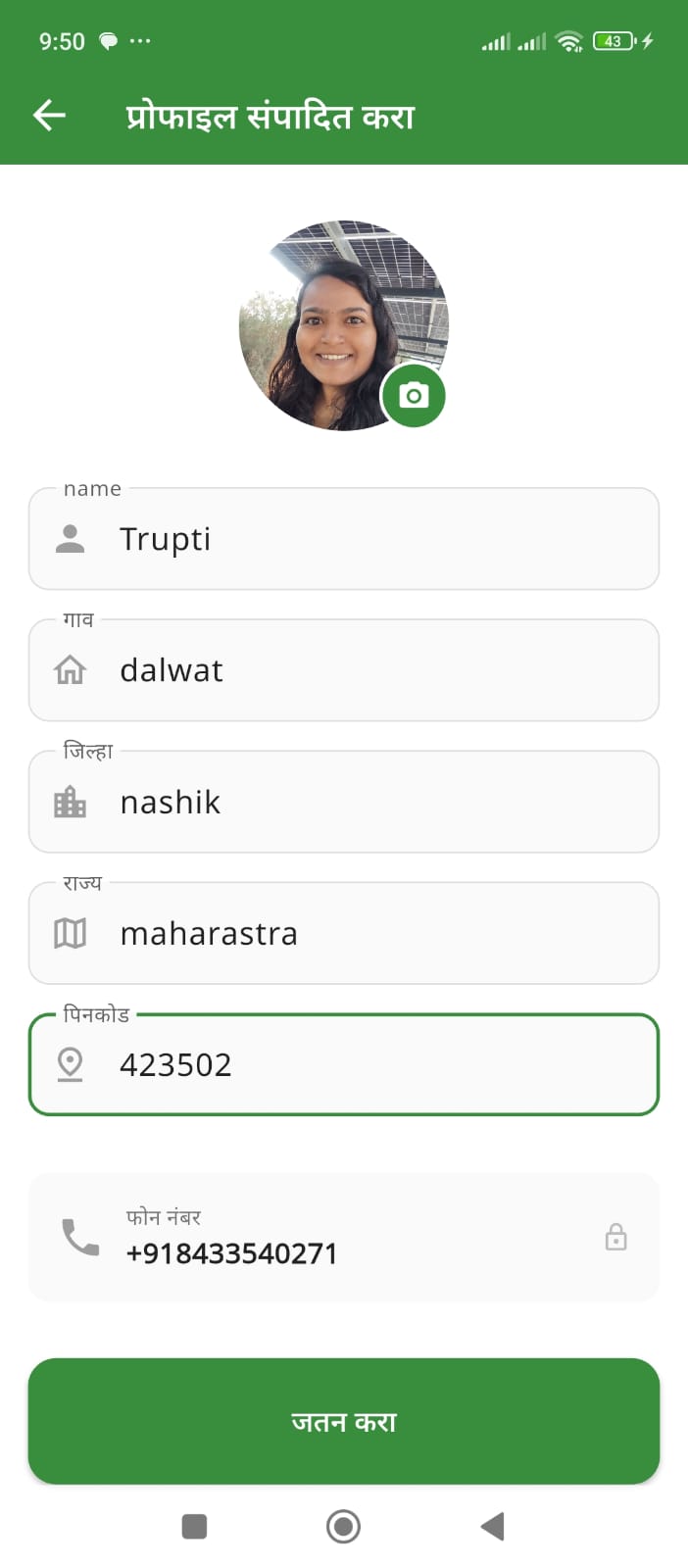
Edit Profile
- Profile Photo - Optional but recommended
- Full Name - Your real name
- Email - For important updates (optional)
- City/Location - Your area or city
- Pin Code - Your postal code
- Bio - Tell others about yourself (optional)
💡 Tip: A complete profile with a photo builds trust and gets more responses!
🔍Finding Services
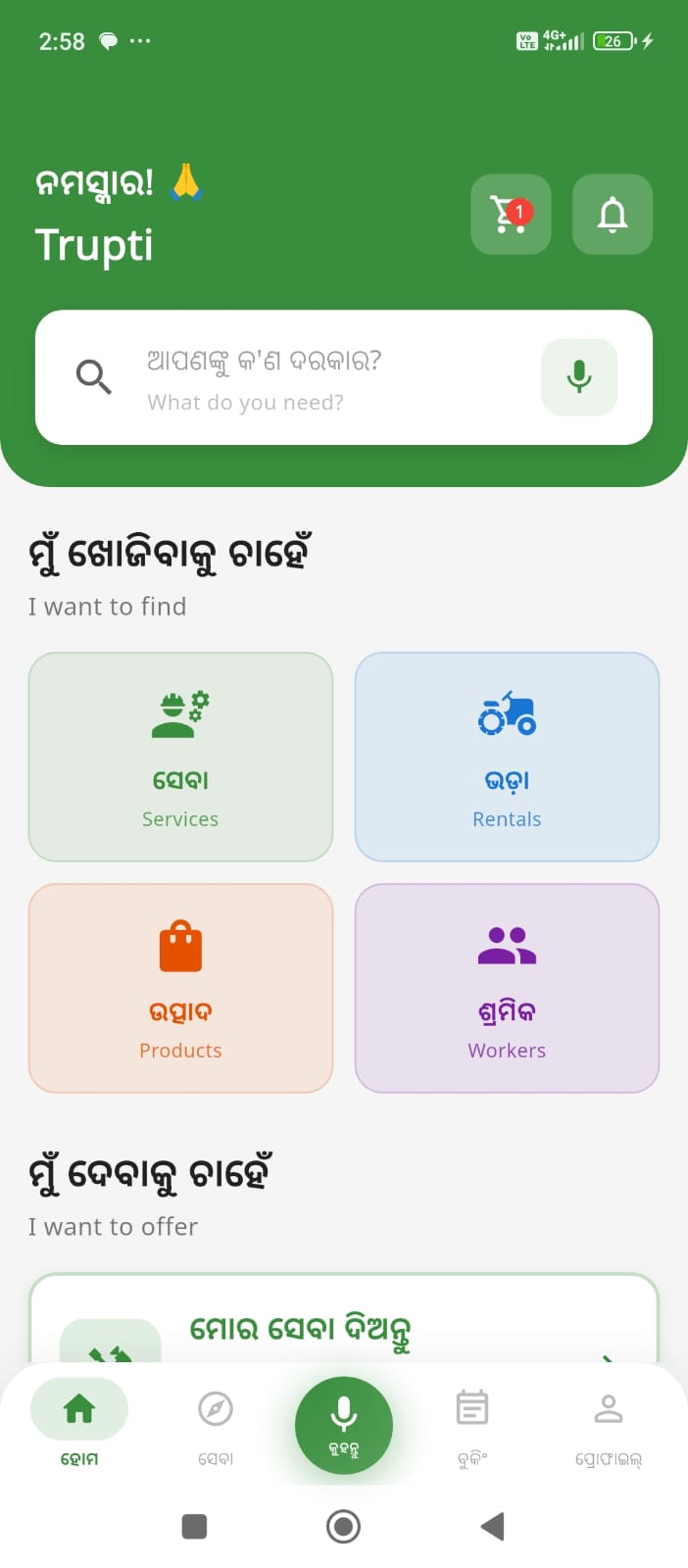
Home Screen
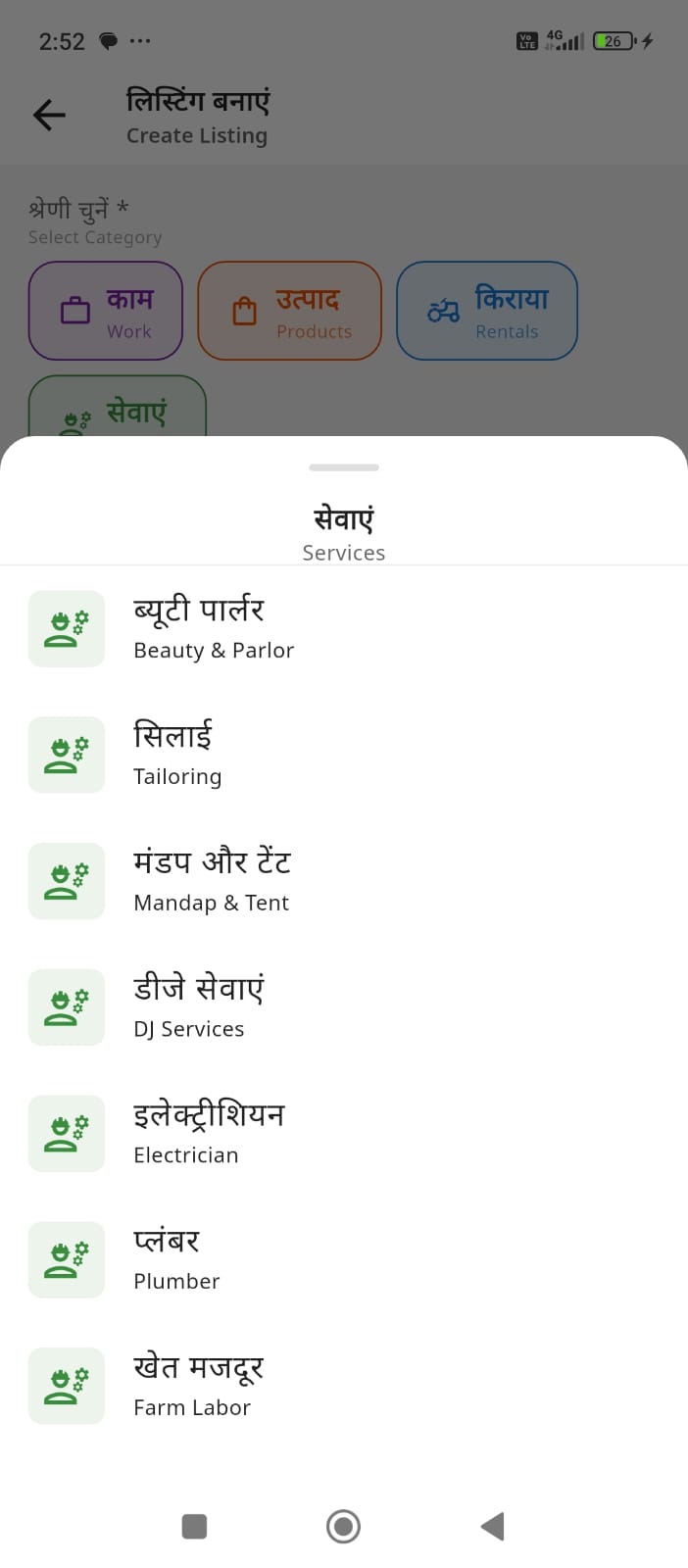
Browse Services
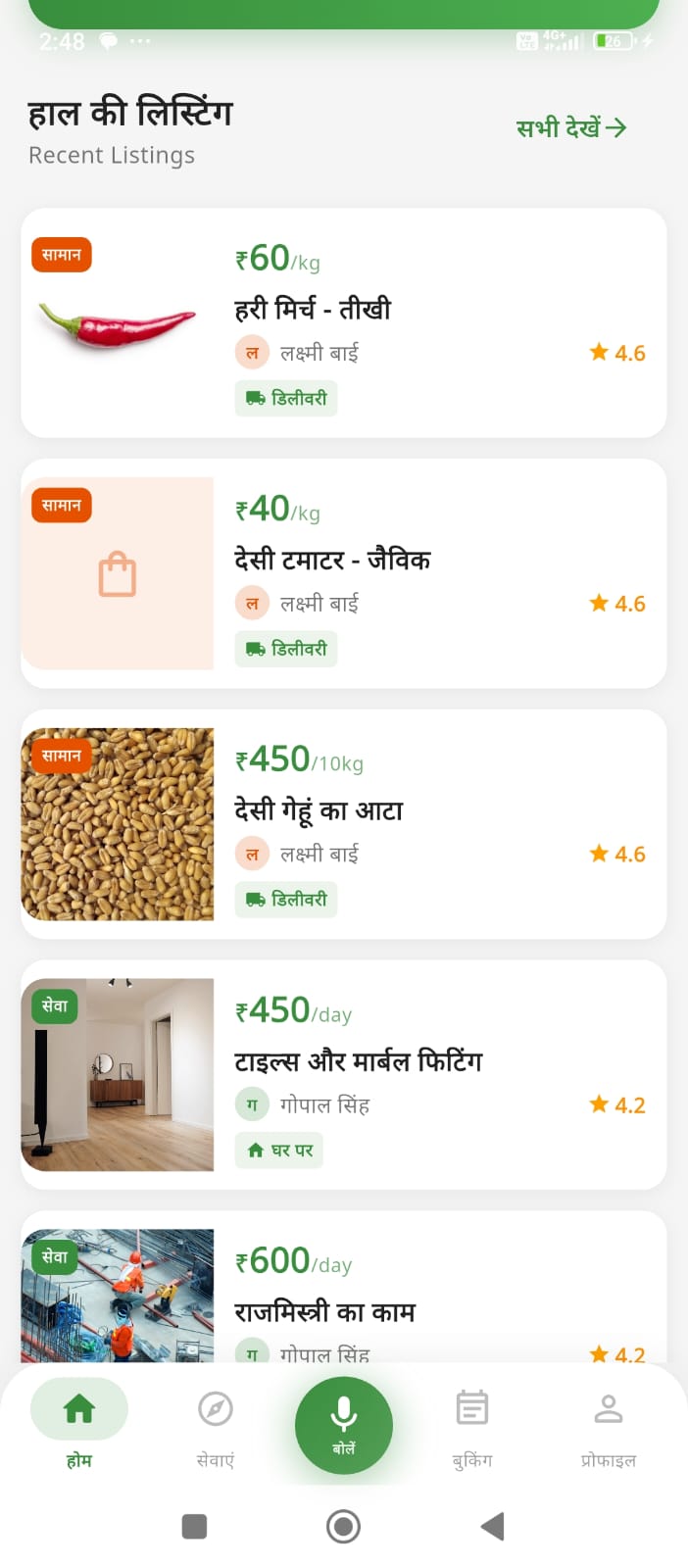
Recent Listings
Method 1: Search Bar
1
Tap the search bar at the top of home screen
2
Type what you need - e.g., "plumber", "tractor rent", "electrician"
3
Browse results - See providers near you
Method 2: Voice Search 🎤
- Tap the microphone icon in the search bar
- Speak in your language: "मुझे प्लम्बर चाहिए" or "I need a plumber"
- See instant results!
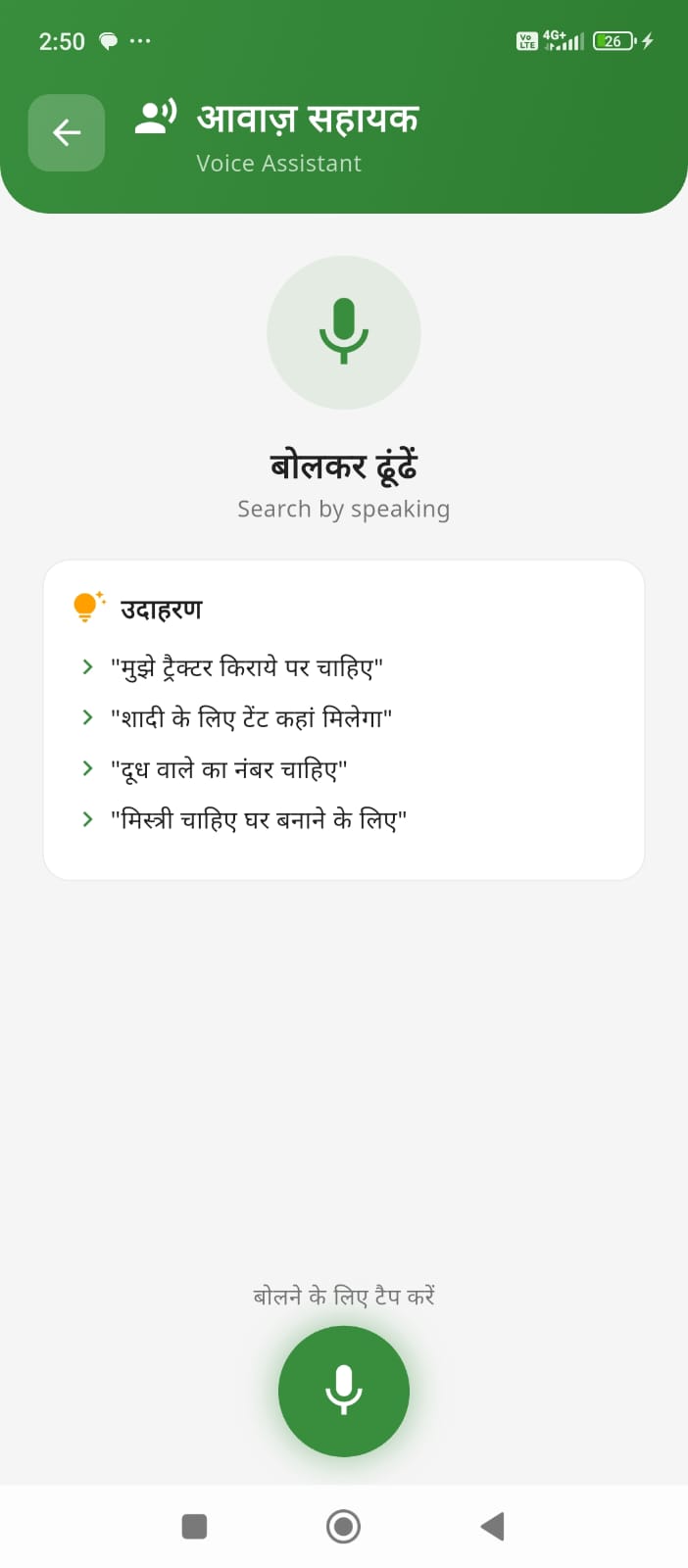
Voice Search
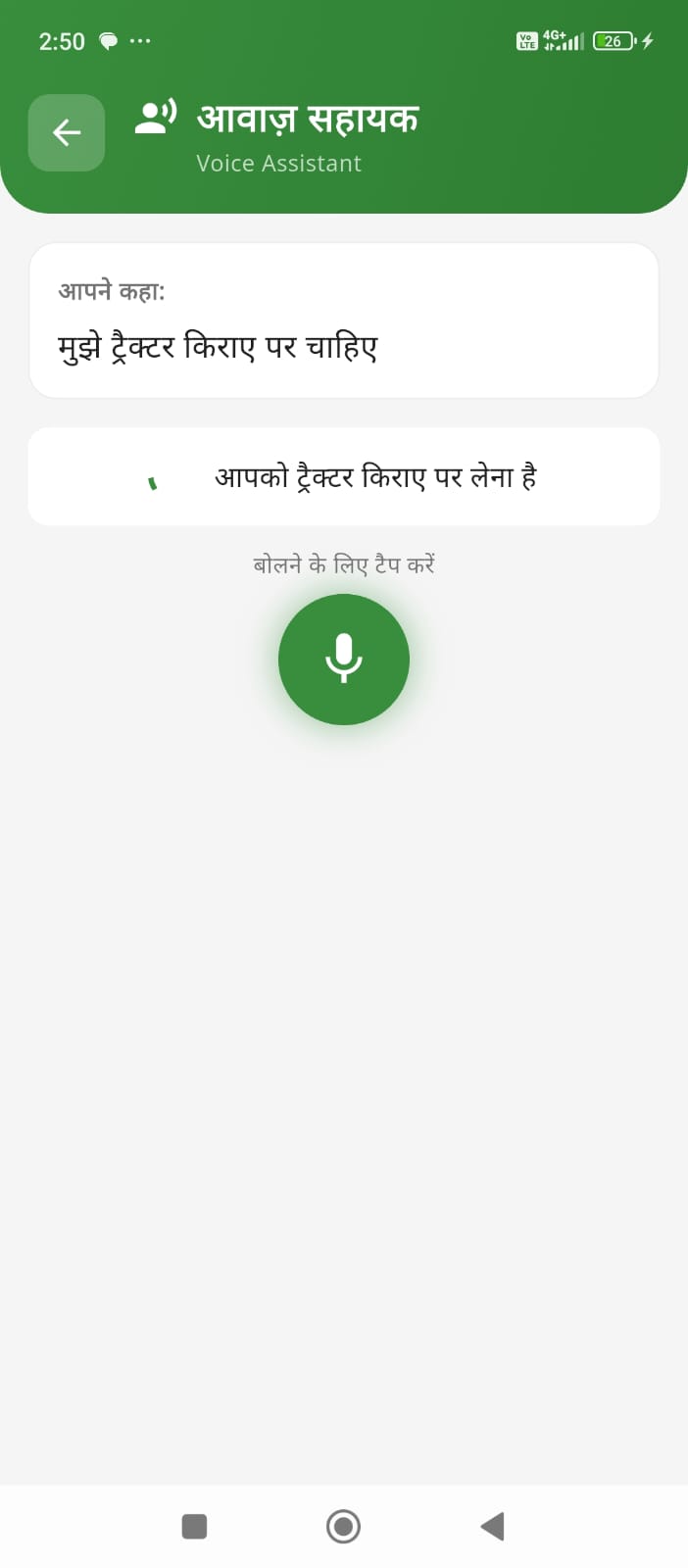
Voice Commands
Method 3: Browse Categories
On the home screen, tap on any category:
- Services - Browse all service providers
- Rentals - Find equipment, rooms, vehicles
- Products - Shop local goods
- Workers - Find daily wage workers
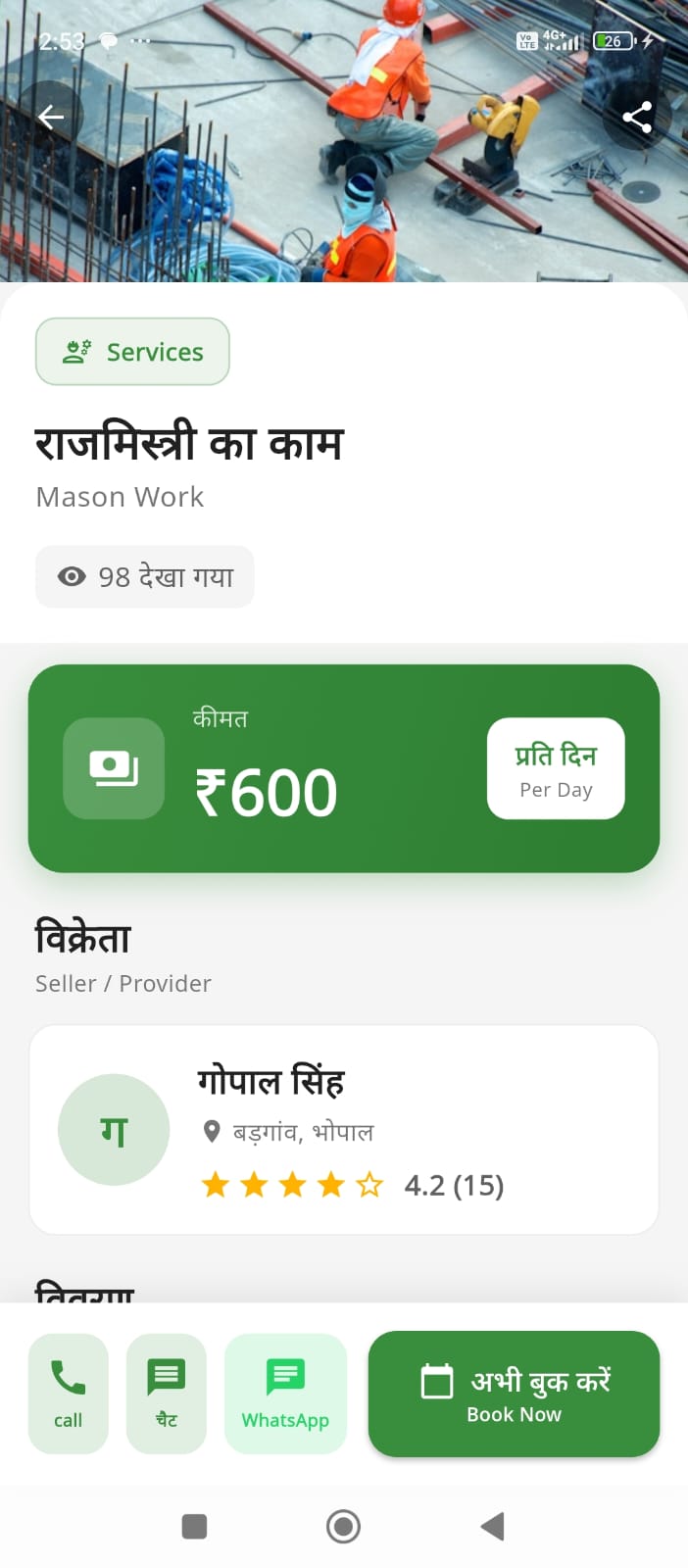
View complete listing details
Understanding Listings
Each listing shows:
- 📷 Photos - See their work or product
- 📍 Location - Distance from you
- ⭐ Ratings - Reviews from other users
- 💰 Price - Cost per hour/day/service
- 👤 Provider Details - Name and contact info
📅Booking Services
How to Book:
1
Find a service you need
2
Tap on the listing to see full details
3
Click "Book Now" button
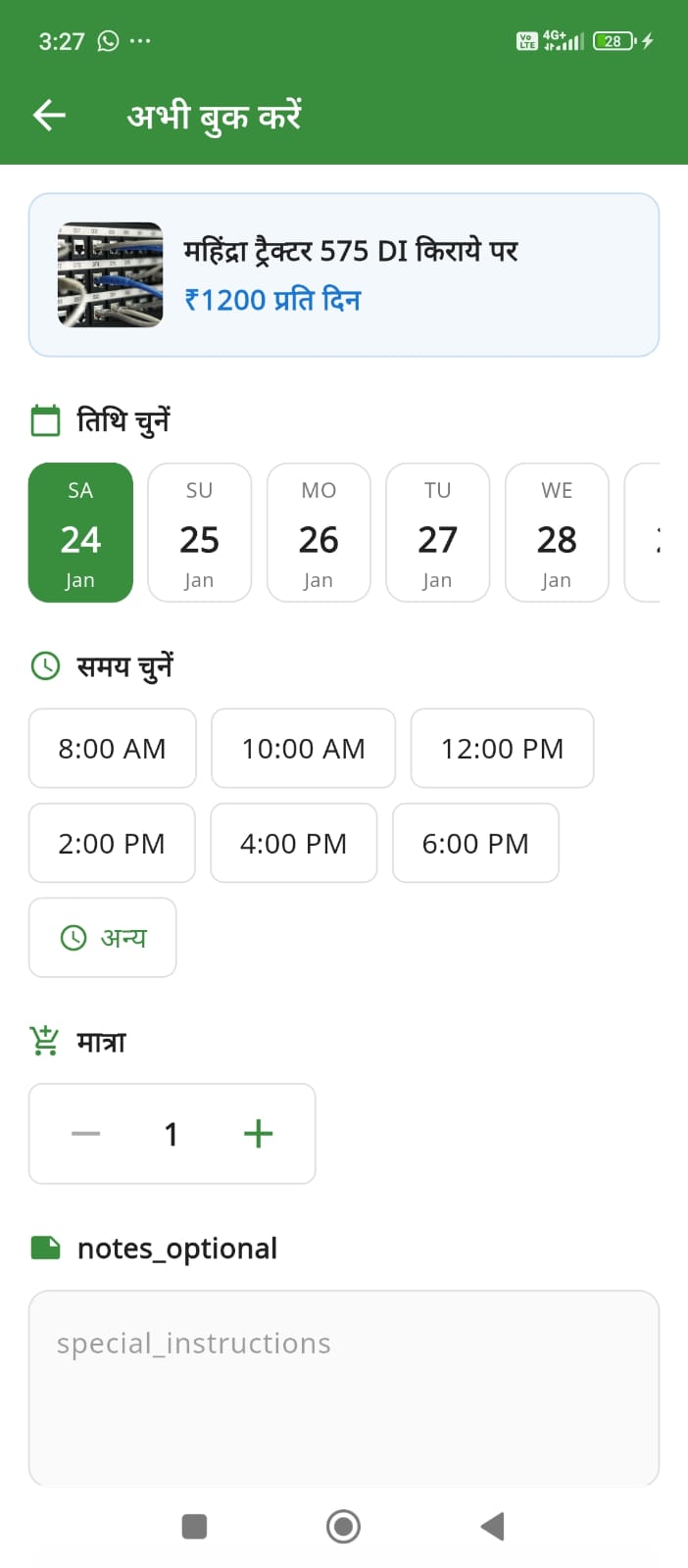
Book Service
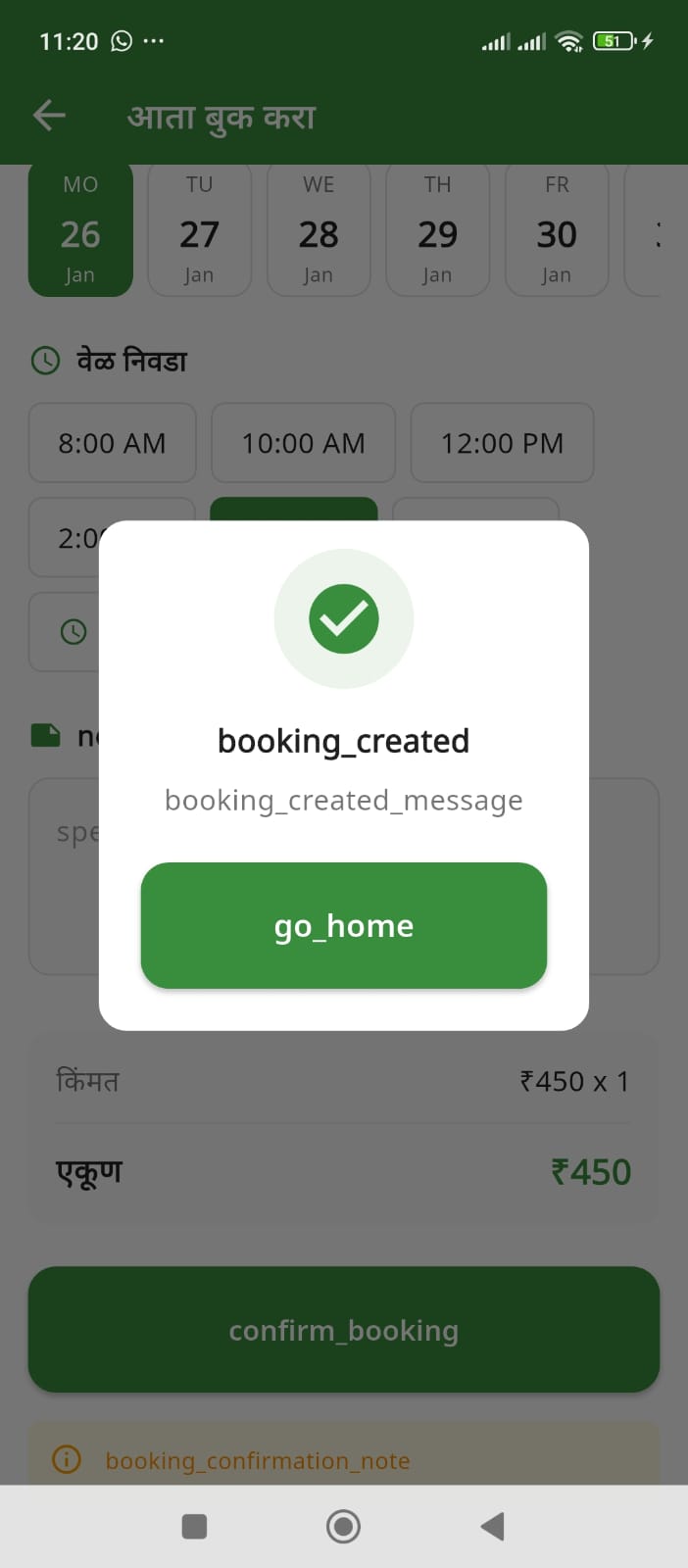
Booking Confirmed
4
Choose date & time when you need the service
5
Add details - Describe your requirement
6
Confirm booking - Review and submit
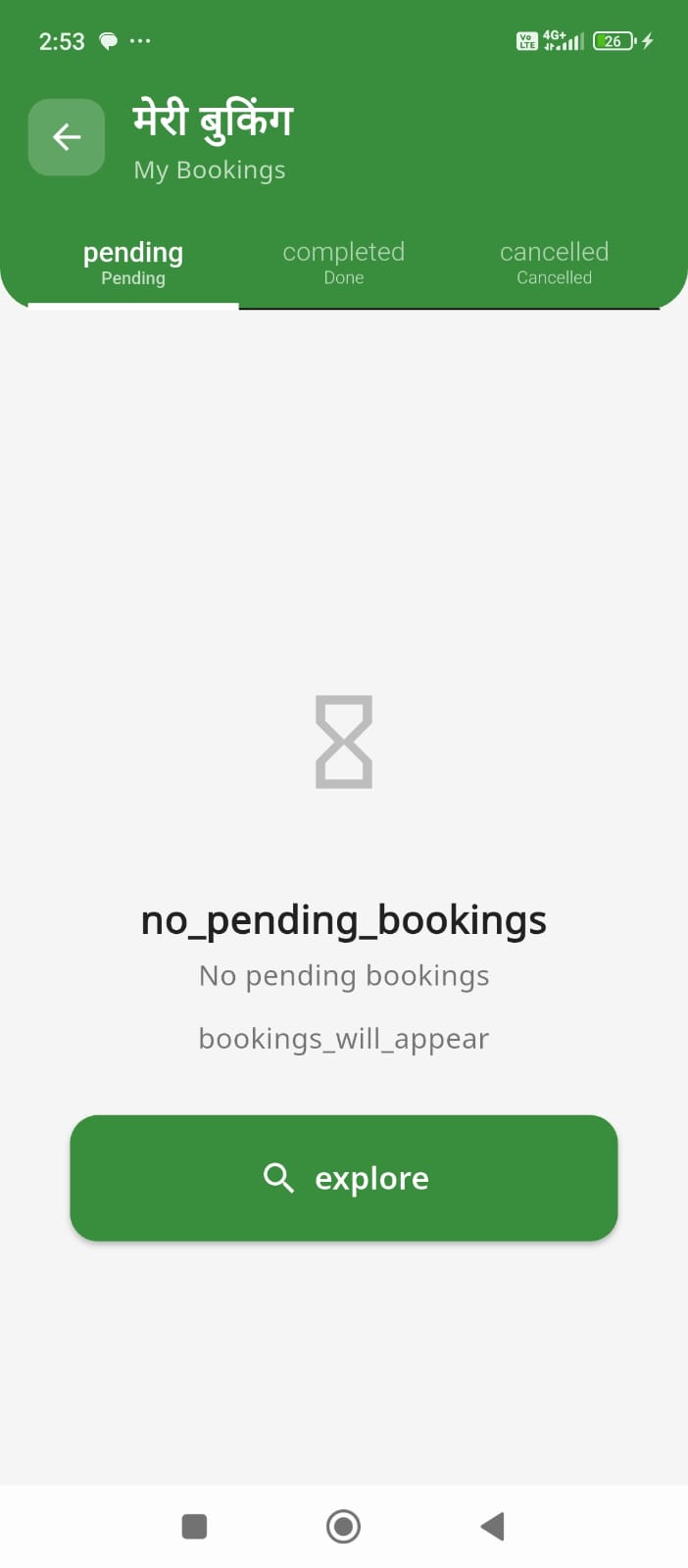
View all your bookings
⚠️ Note: The provider will receive your booking request and can accept or decline. You'll be notified of their response.
💬Chatting with Providers
You can chat directly with any service provider:
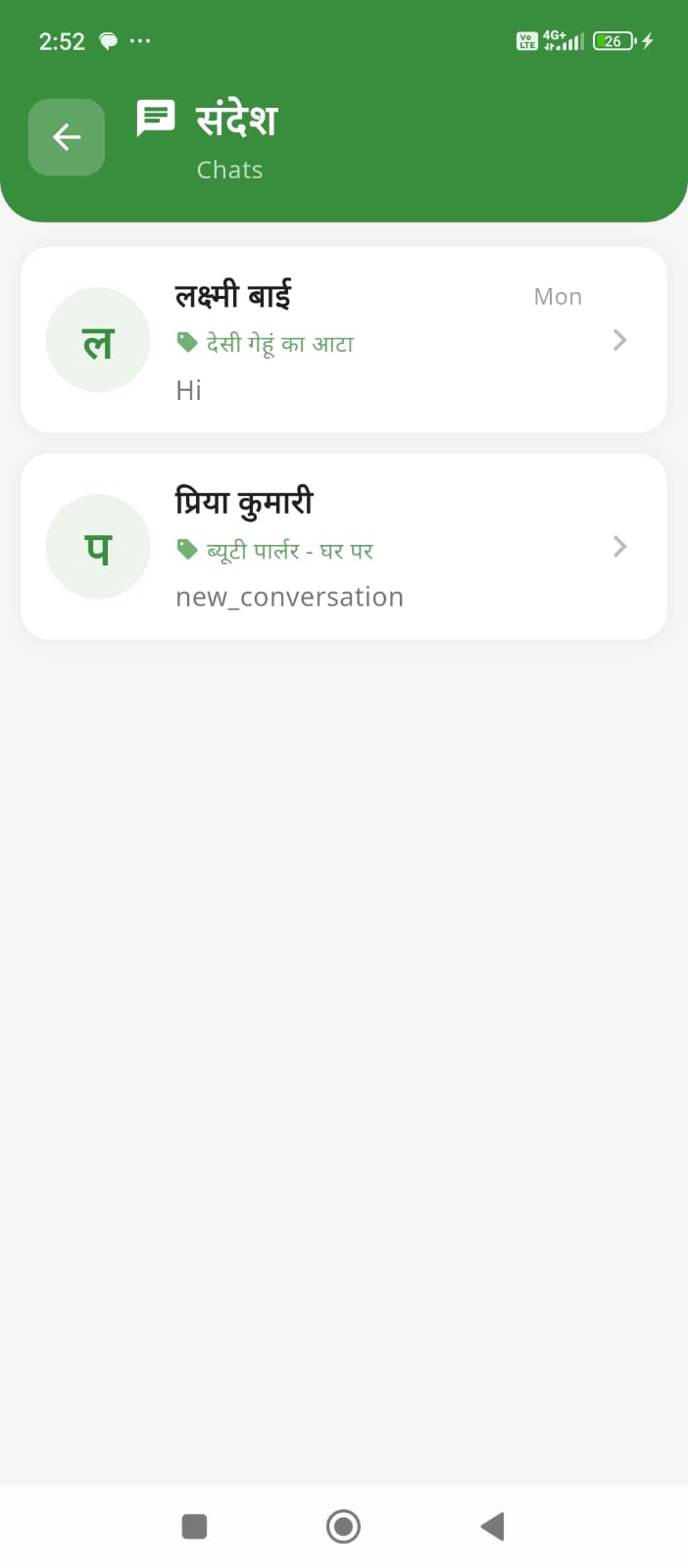
All Conversations
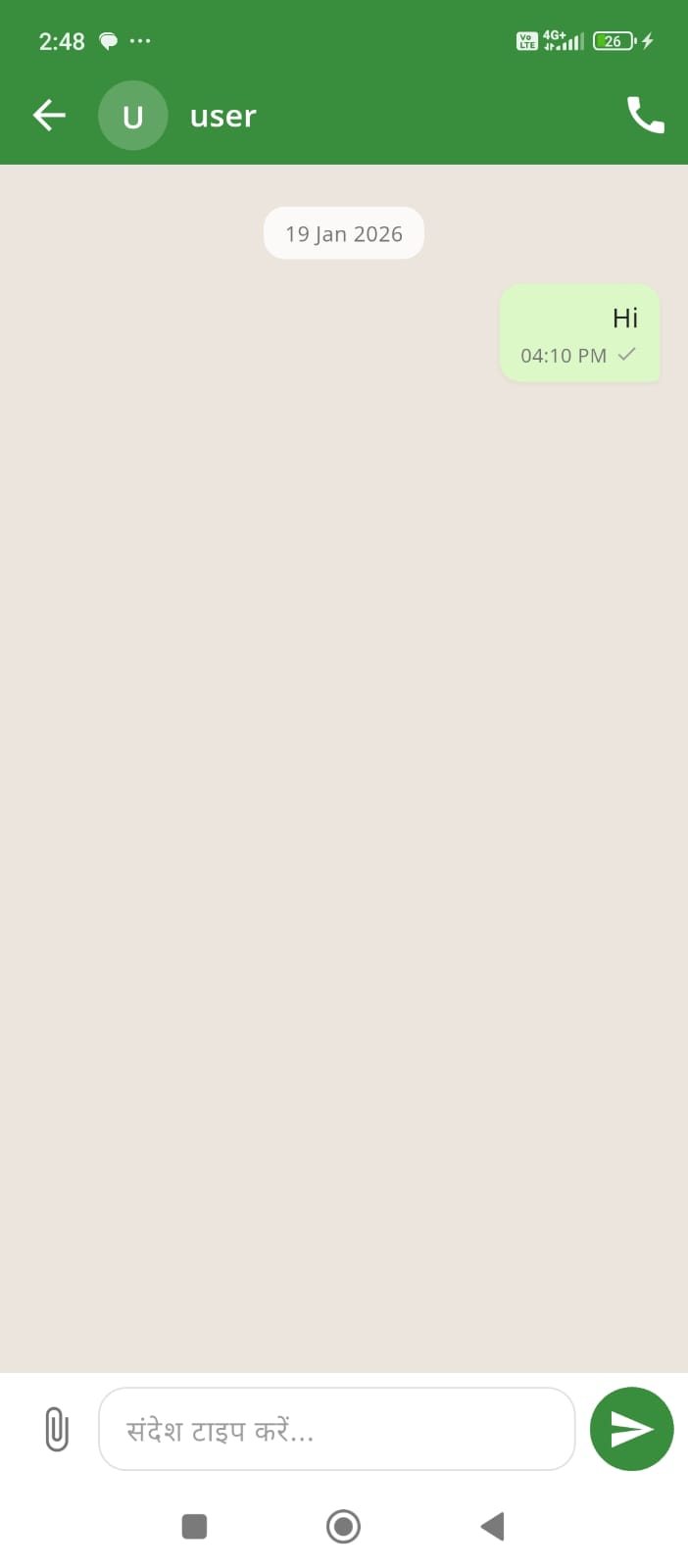
Chat Interface
- Open any listing
- Tap the "Chat" button
- Type your message or use voice
- Wait for their reply
💡 Chat Tips:
- Be polite and clear about your needs
- Ask about availability and pricing
- Share your location if needed
- Negotiate price if appropriate
💼Becoming a Provider
Want to offer your services or products? Here's how:
Step 1: Create a Listing
1
Go to Home screen
2
Scroll down to "I want to offer" section
3
Choose what you want to offer:
- Offer my service (plumbing, carpentry, etc.)
- Rent my equipment (tractor, tools, etc.)
- Sell my product (goods, items, etc.)
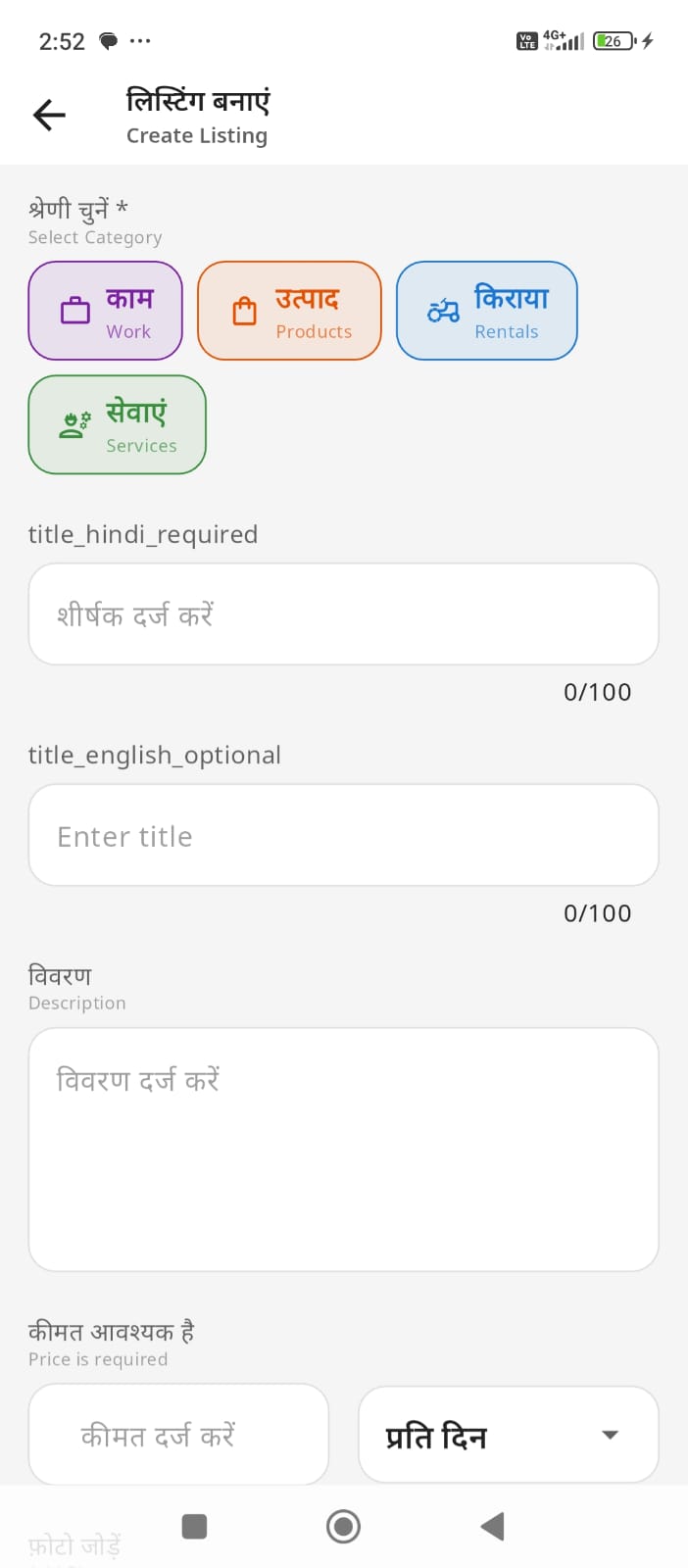
Start Creating
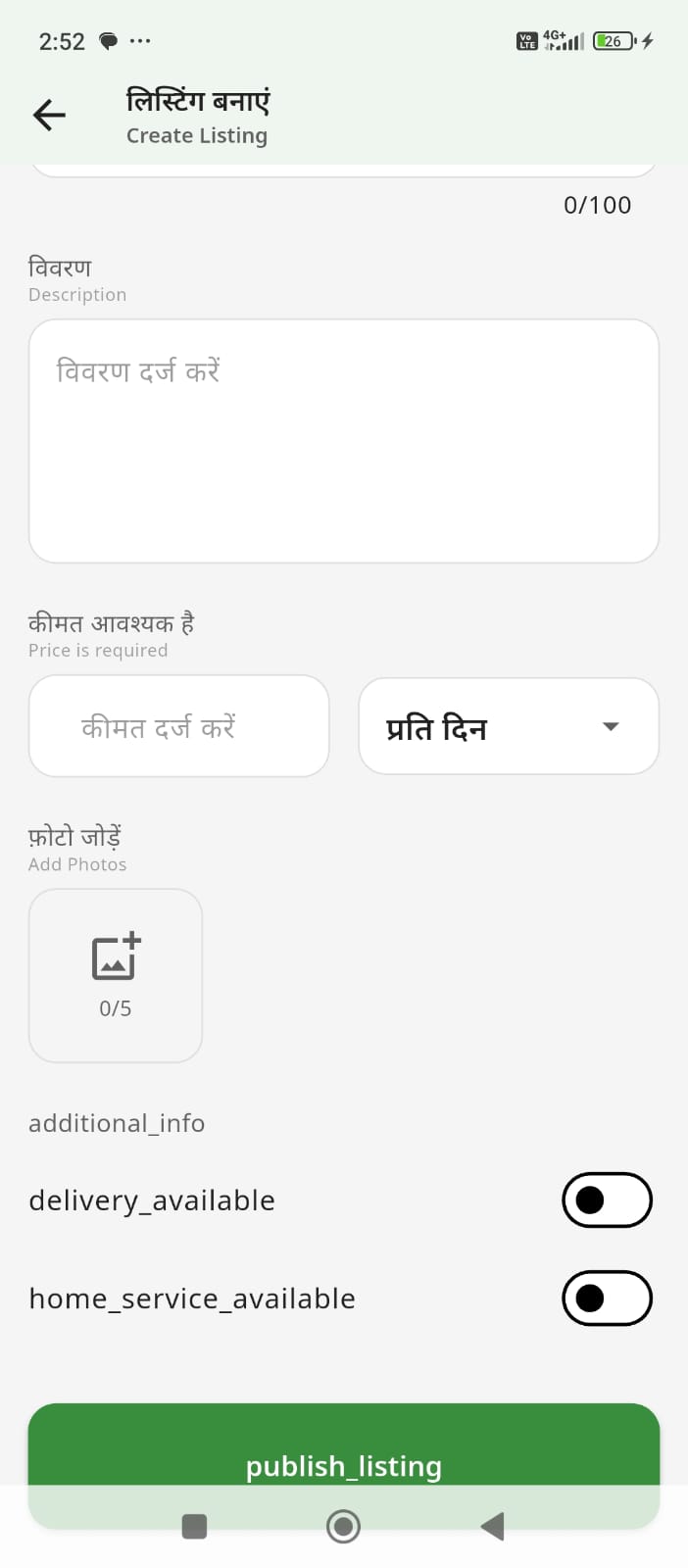
Add Details
Step 2: Fill Listing Details
- Title - Clear, descriptive name
- Category - Select appropriate category
- Description - Explain your service/product
- Photos - Add 3-5 clear photos (required)
- Price - Set your rate (per hour/day/item)
- Location - Your service area
- Availability - When you're available
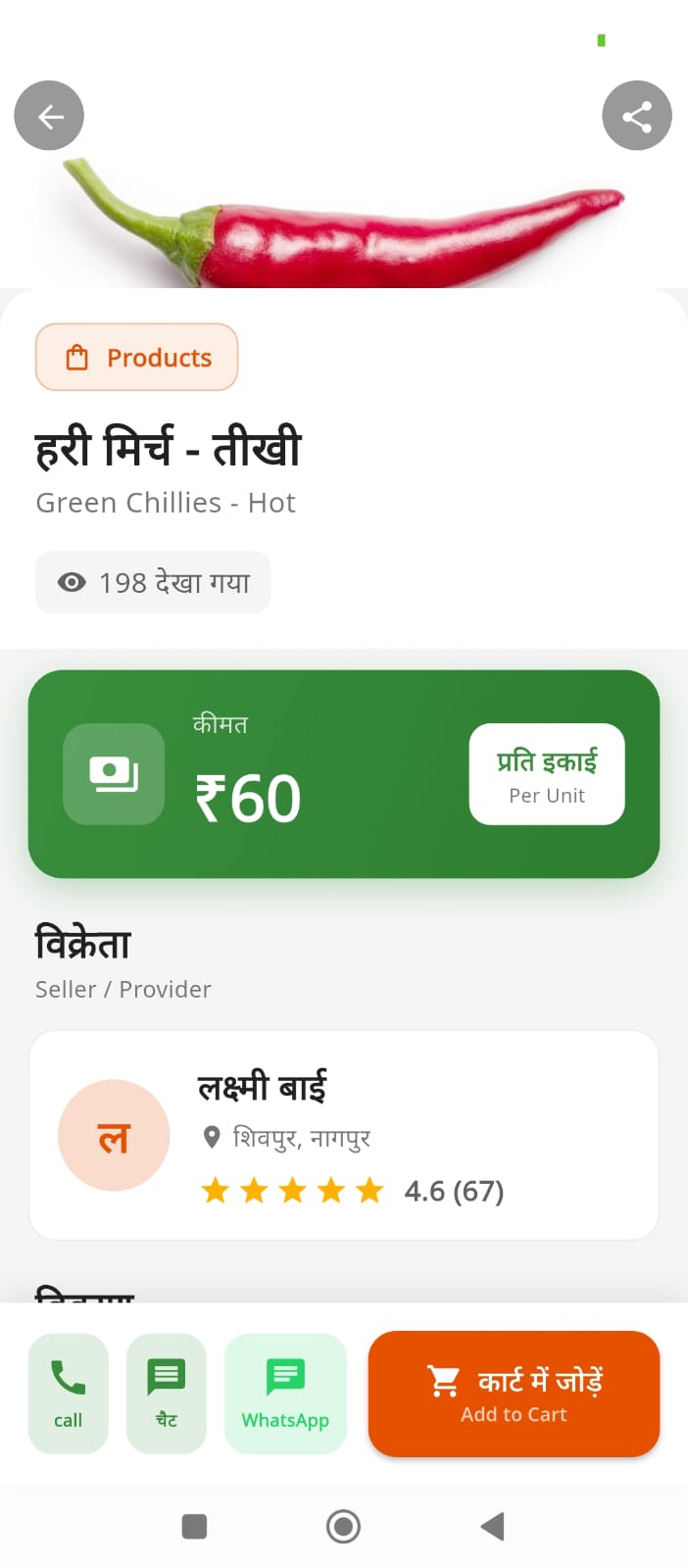
Example of a product listing
Step 3: Publish
Review everything and tap "Publish Listing". Your listing will go live immediately!
✨ Tips for a Great Listing:
- 📸 Add high-quality, well-lit photos
- 📝 Write detailed, honest descriptions
- 💰 Set competitive, fair prices
- ⏰ Keep your availability updated
- 📱 Respond quickly to inquiries
📋Managing Your Listings
View Your Listings
- Go to Profile tab
- Tap "My Listings"
- See all your active and inactive listings
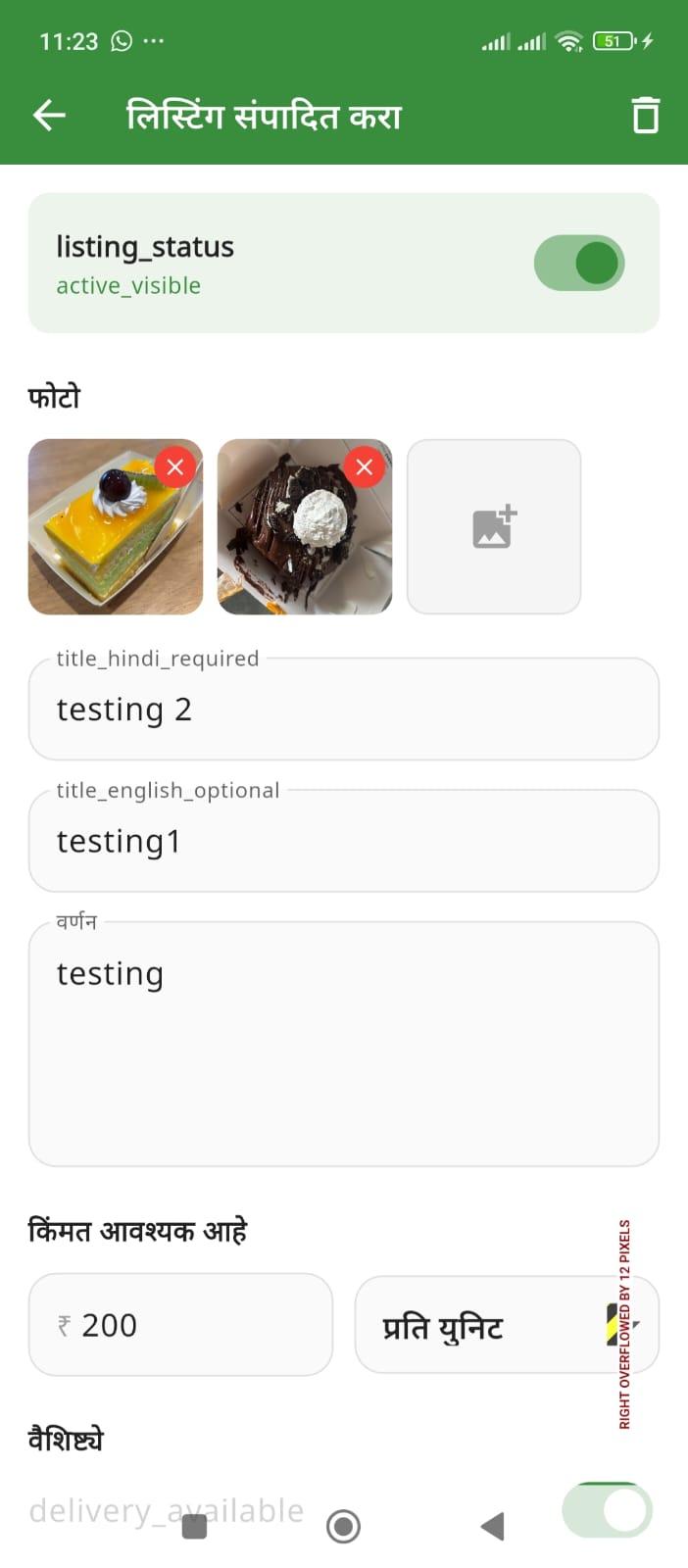
Edit Your Listing
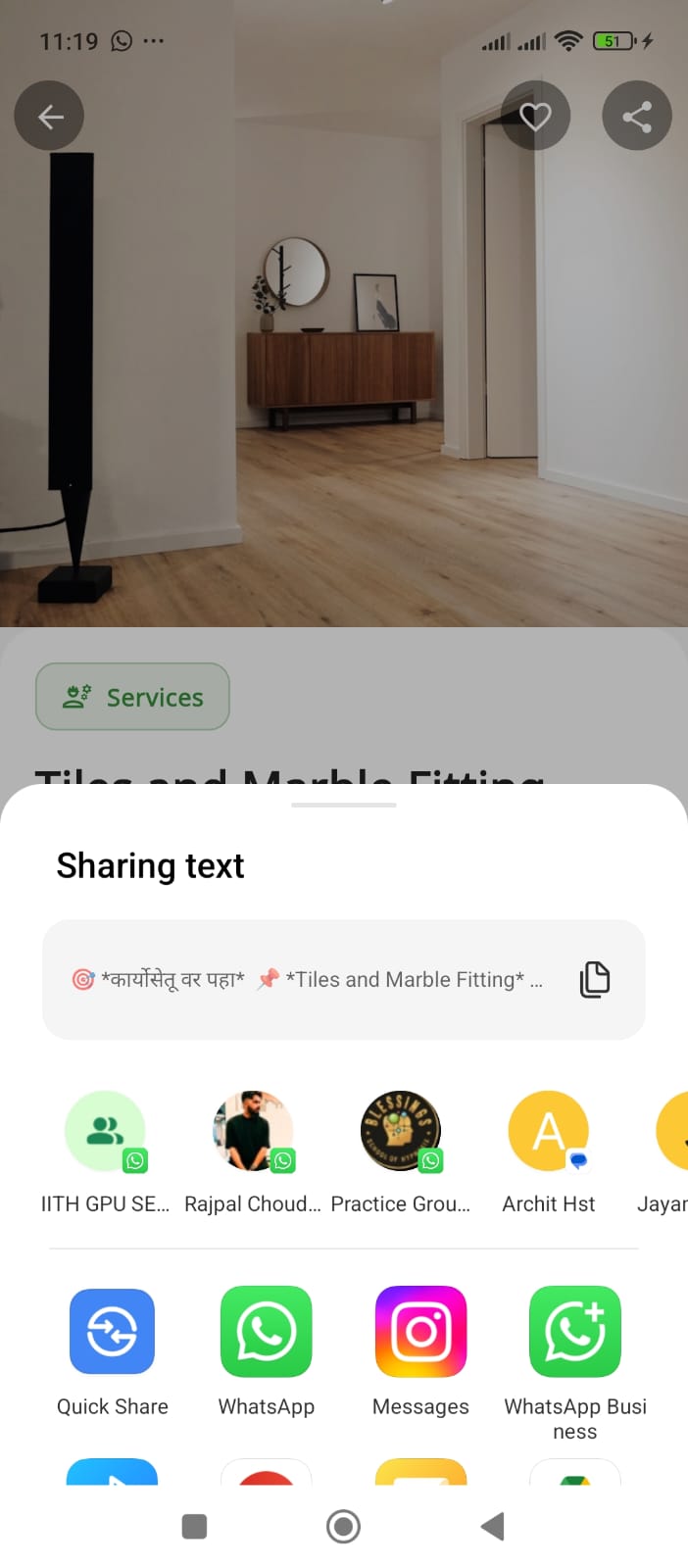
Share Listing
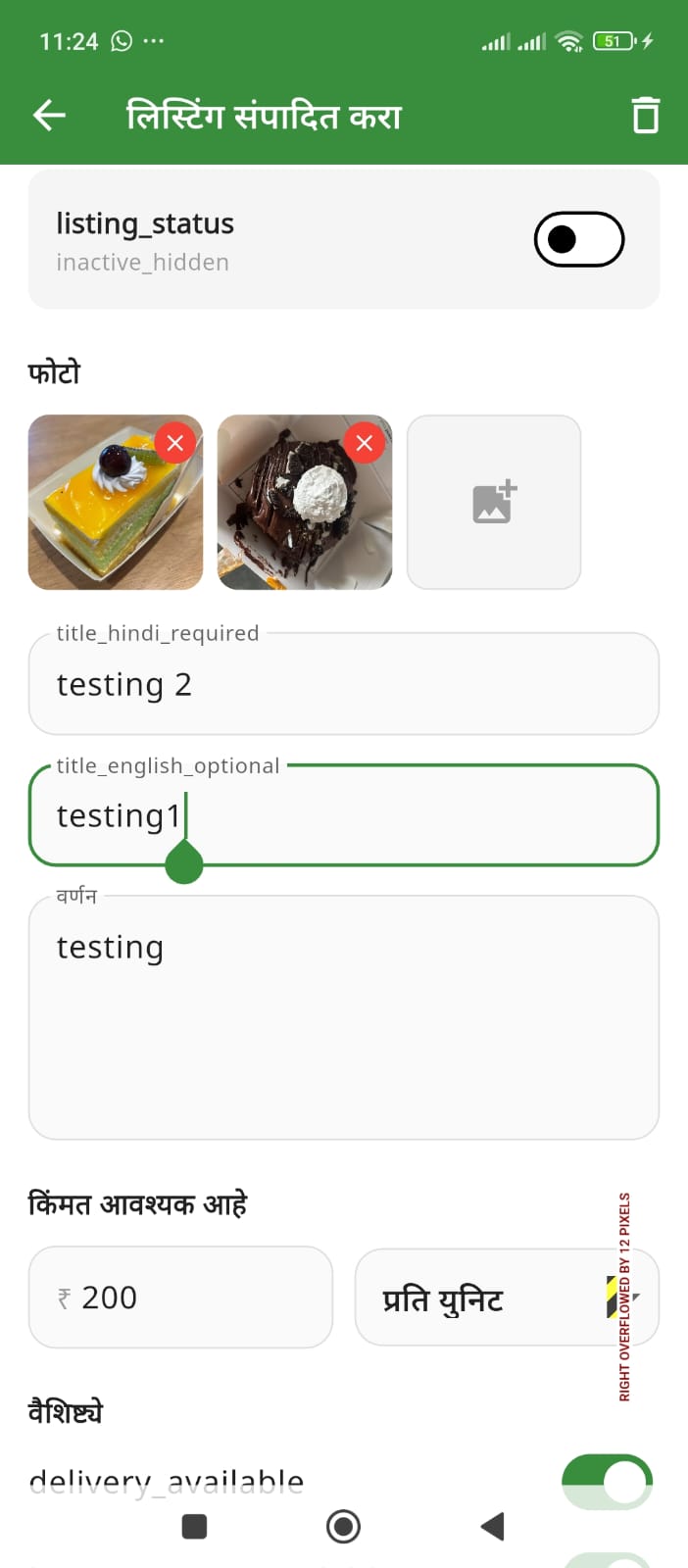
Mark Inactive
Edit a Listing
- Open the listing you want to edit
- Tap the Edit icon (pencil)
- Make your changes
- Tap "Save Changes"
Mark as Inactive/Active
Temporarily pause a listing without deleting:
- Open the listing
- Toggle the "Active/Inactive" switch
- Inactive listings won't show in search results
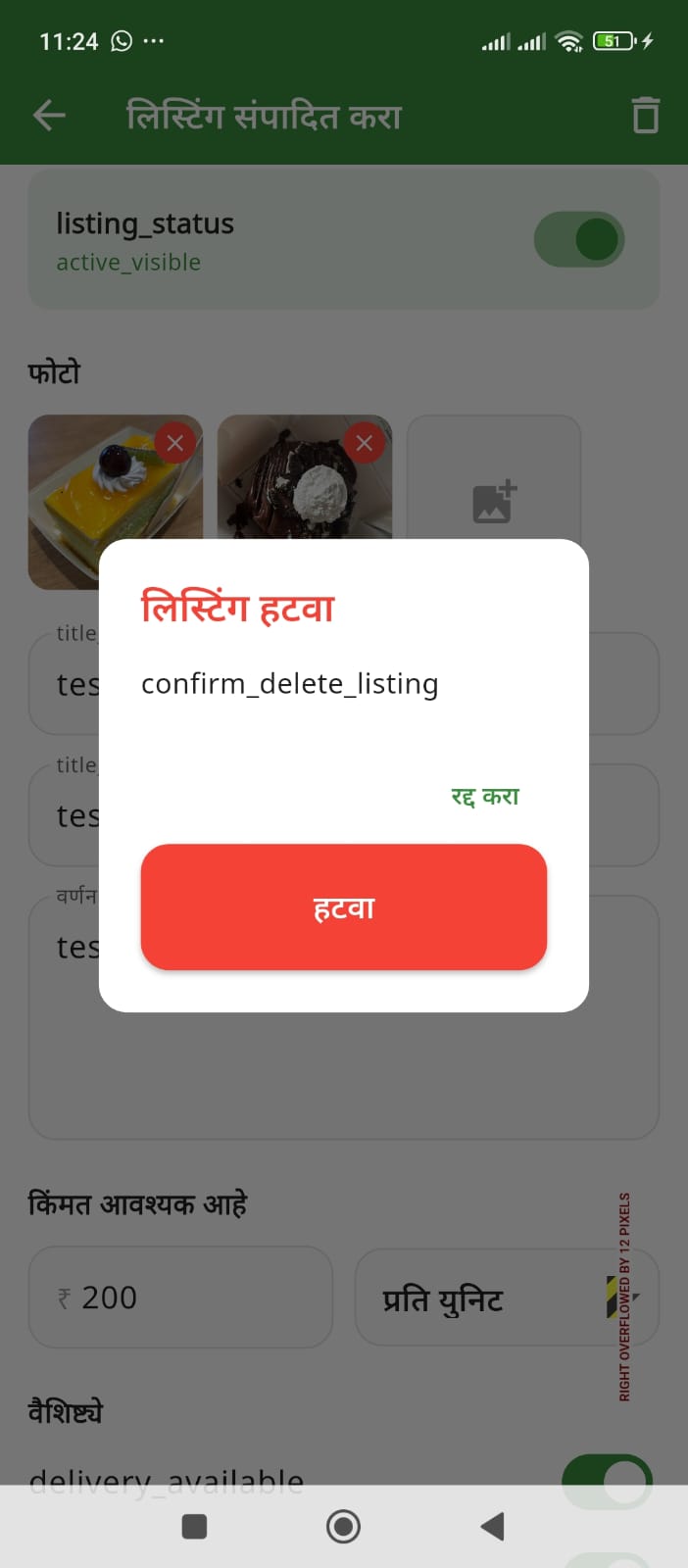
Delete listing if no longer needed
⚠️ Warning: Deleting a listing is permanent. Consider marking it as inactive instead if you might need it later.
📆Managing Bookings
View Your Bookings
Access from bottom navigation:
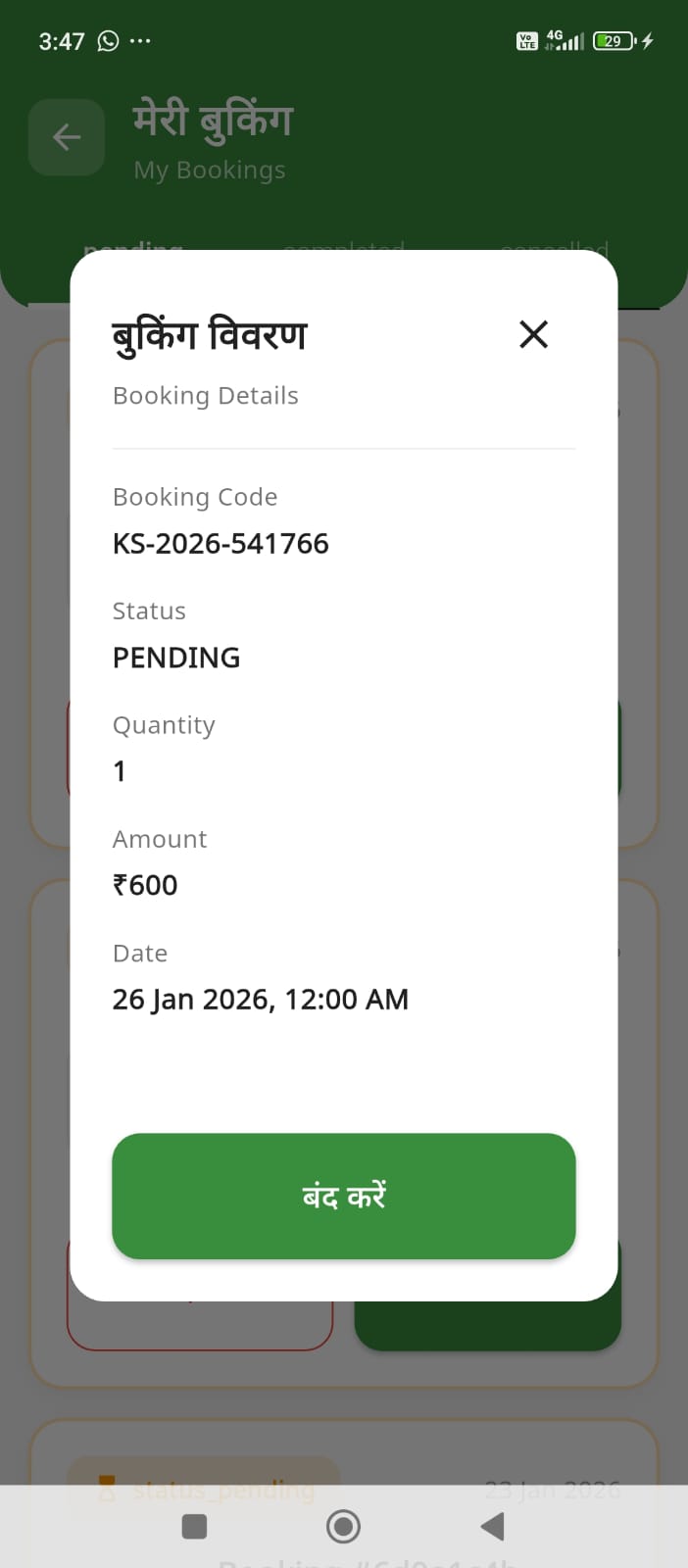
Booking Details
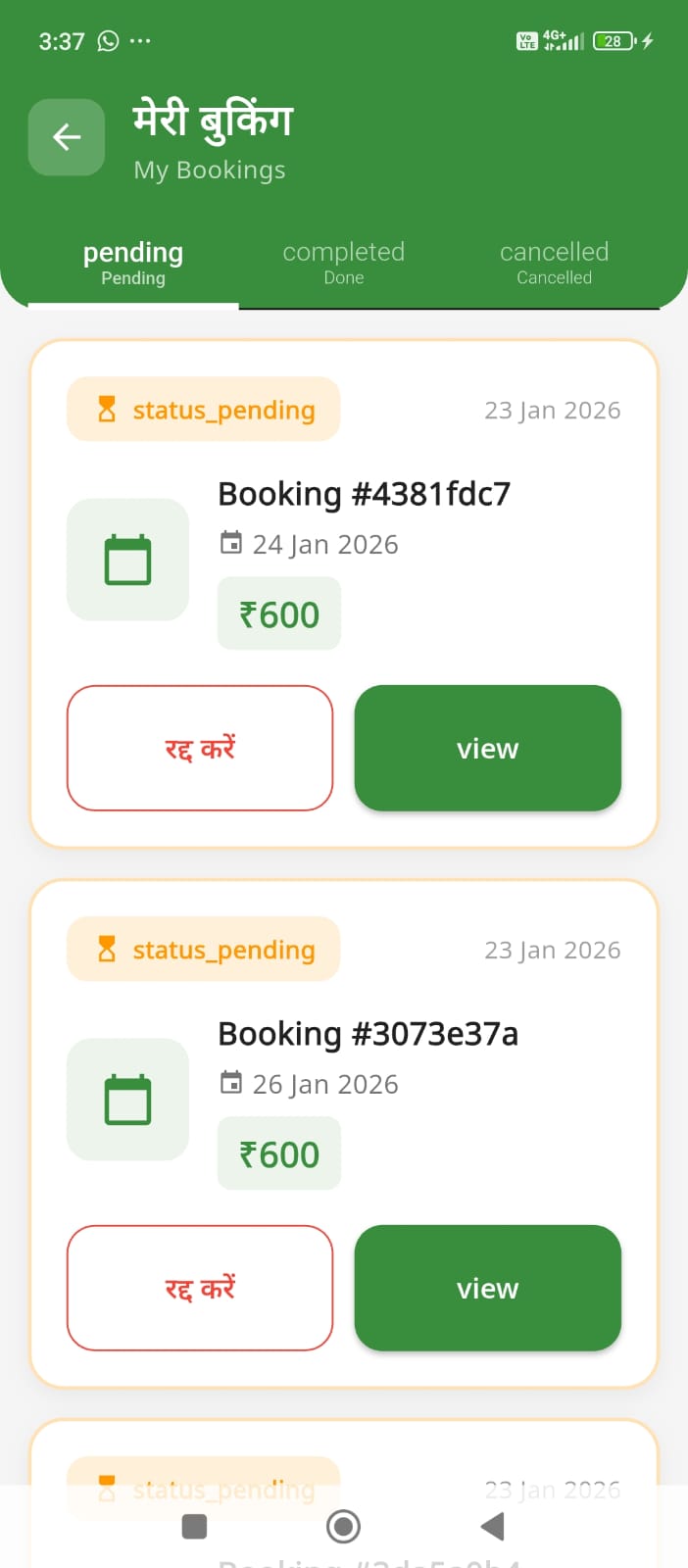
All Your Bookings
- Tap "Bookings" tab
- See two sections:
- My Requests - Services you booked
- Received Requests - Bookings for your services
Accepting/Declining Bookings (as Provider)
- Open a booking request
- Review the details
- Tap "Accept" to confirm or "Decline" to reject
- Add a message if declining (optional)
💡 Best Practice: Cancel at least 24 hours in advance to maintain good ratings!
⚙️Profile & Settings
Settings
Access settings from Profile → Settings icon:
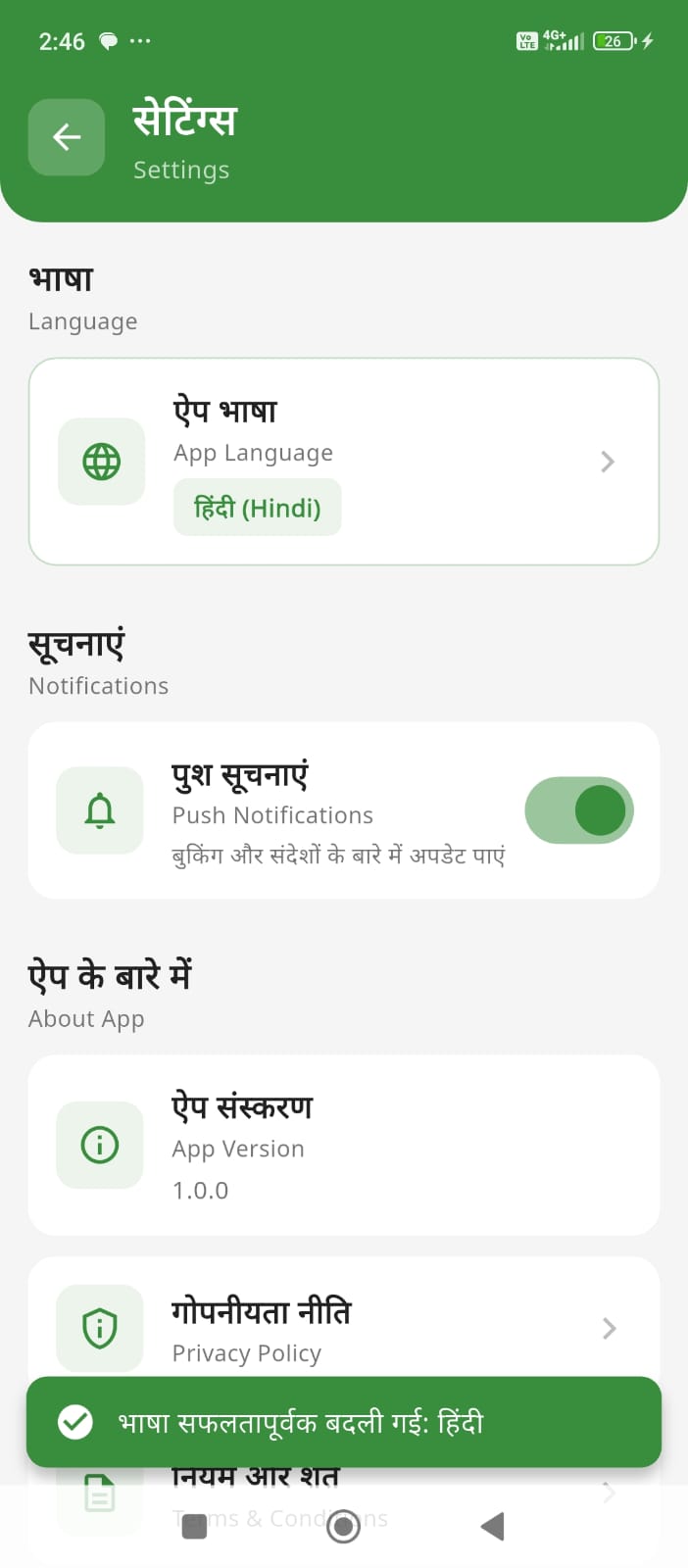
App Settings
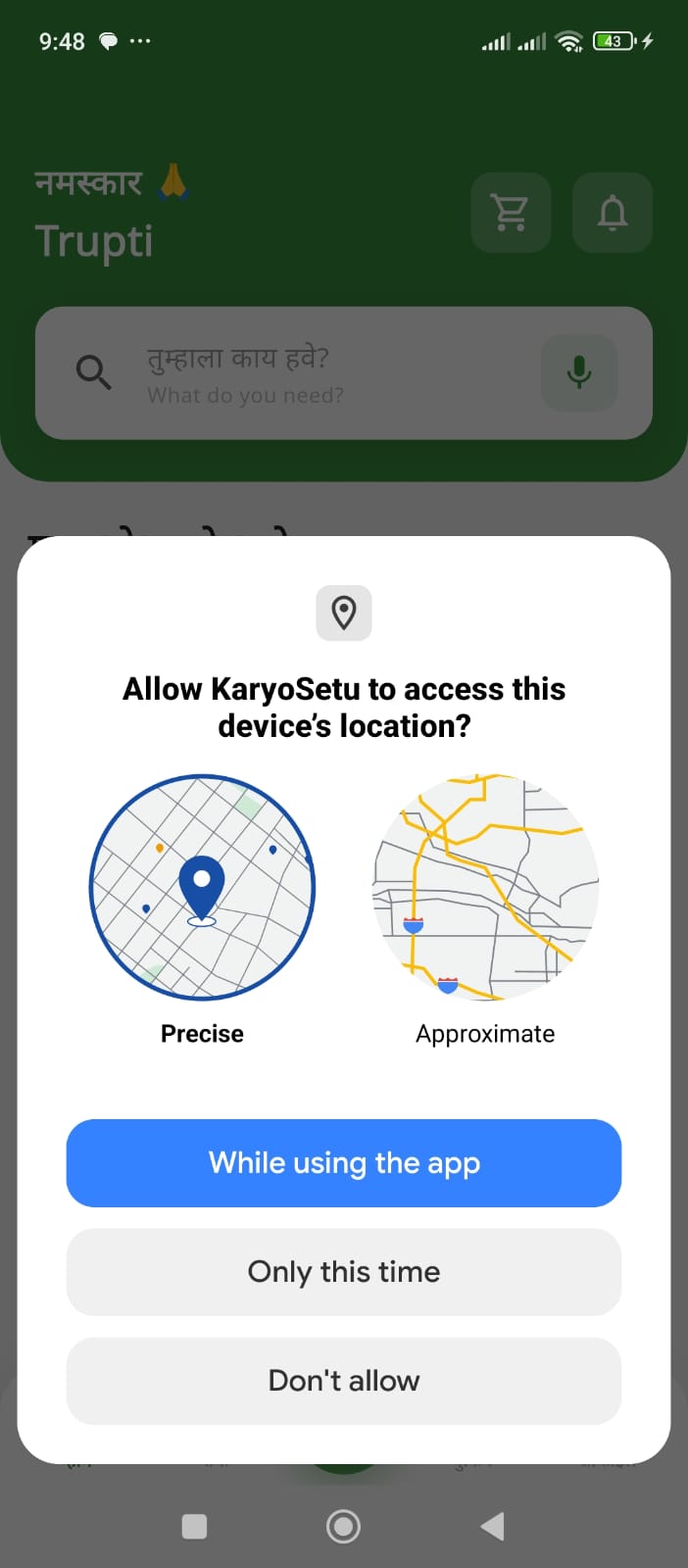
Location Access
- Language - Change app language
- Notifications - Control what alerts you receive
- Privacy - Manage who can see your profile
- Location - Update your service area
- Help & Support - Contact us
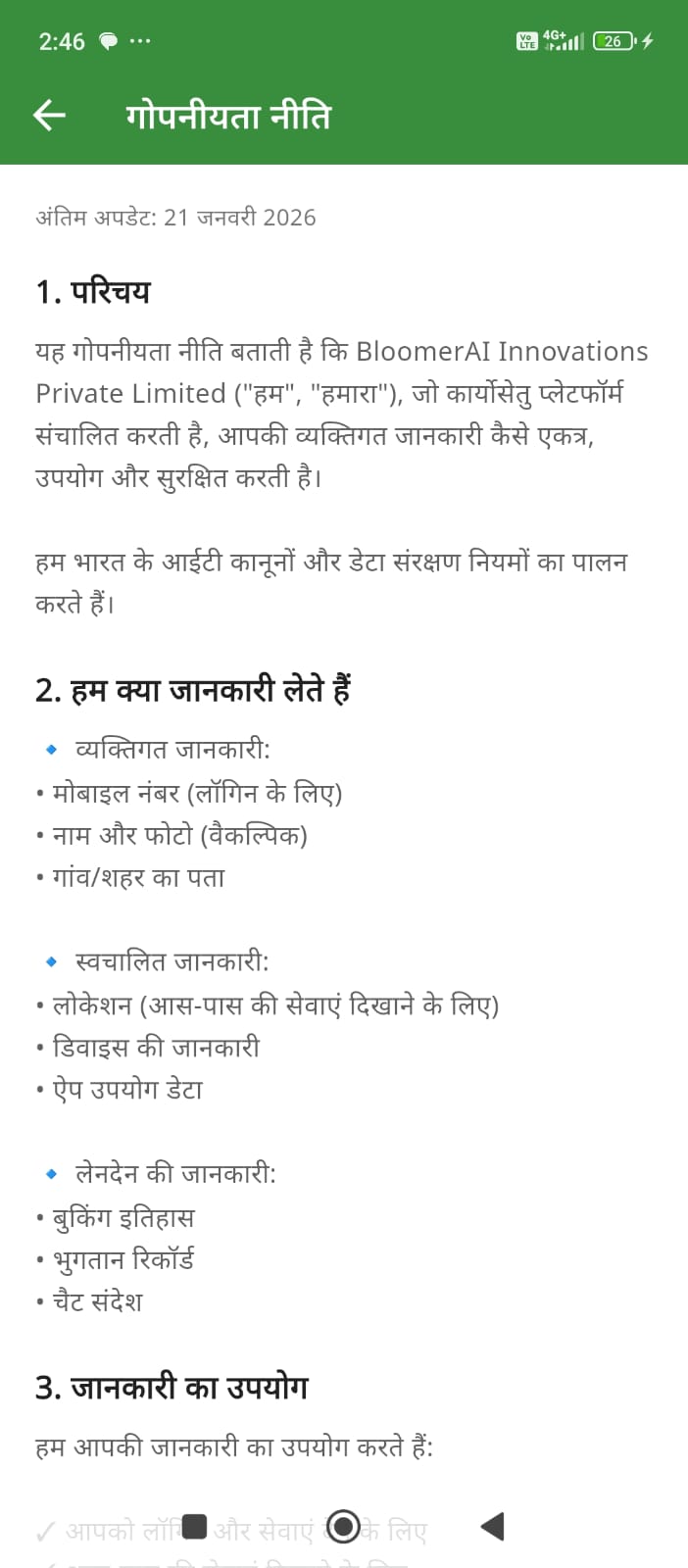
Privacy Policy
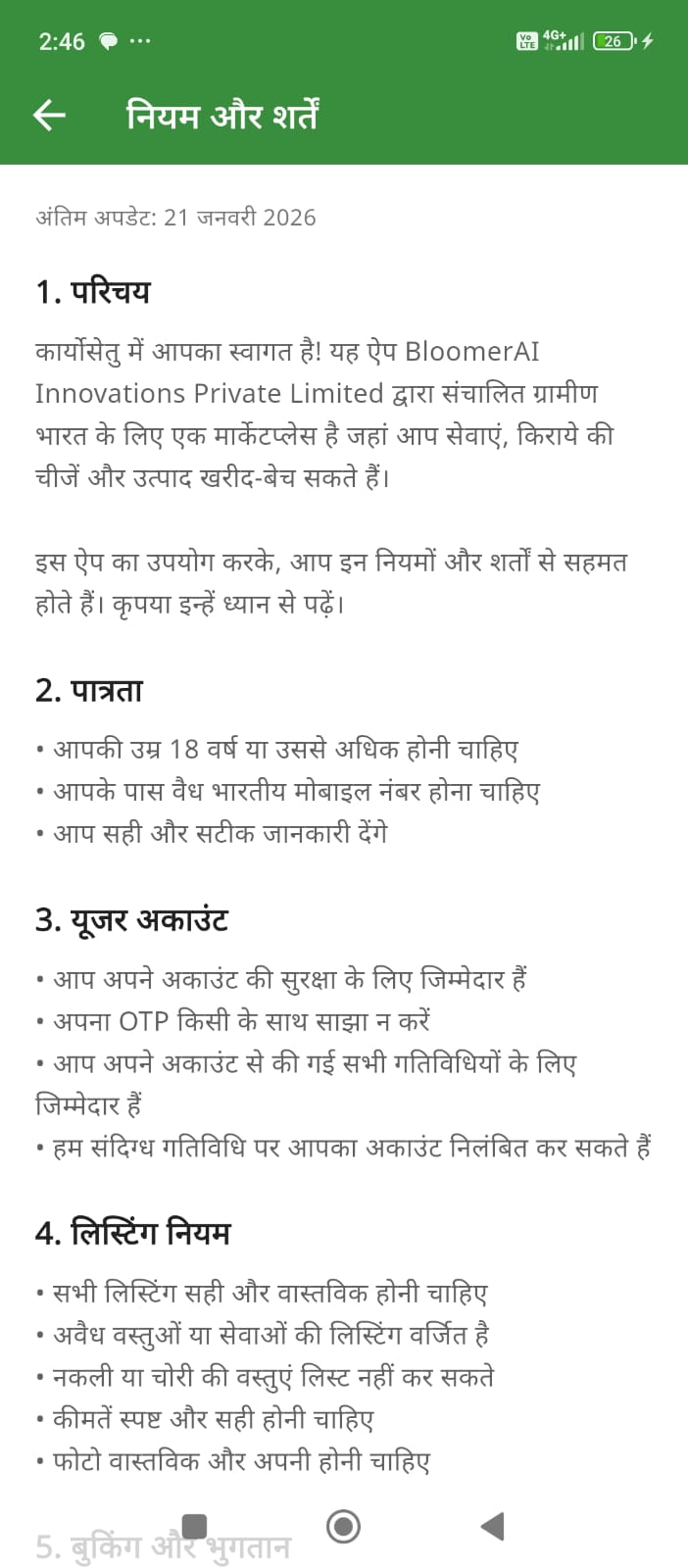
Terms & Conditions
Wallet
Manage payments and earnings:
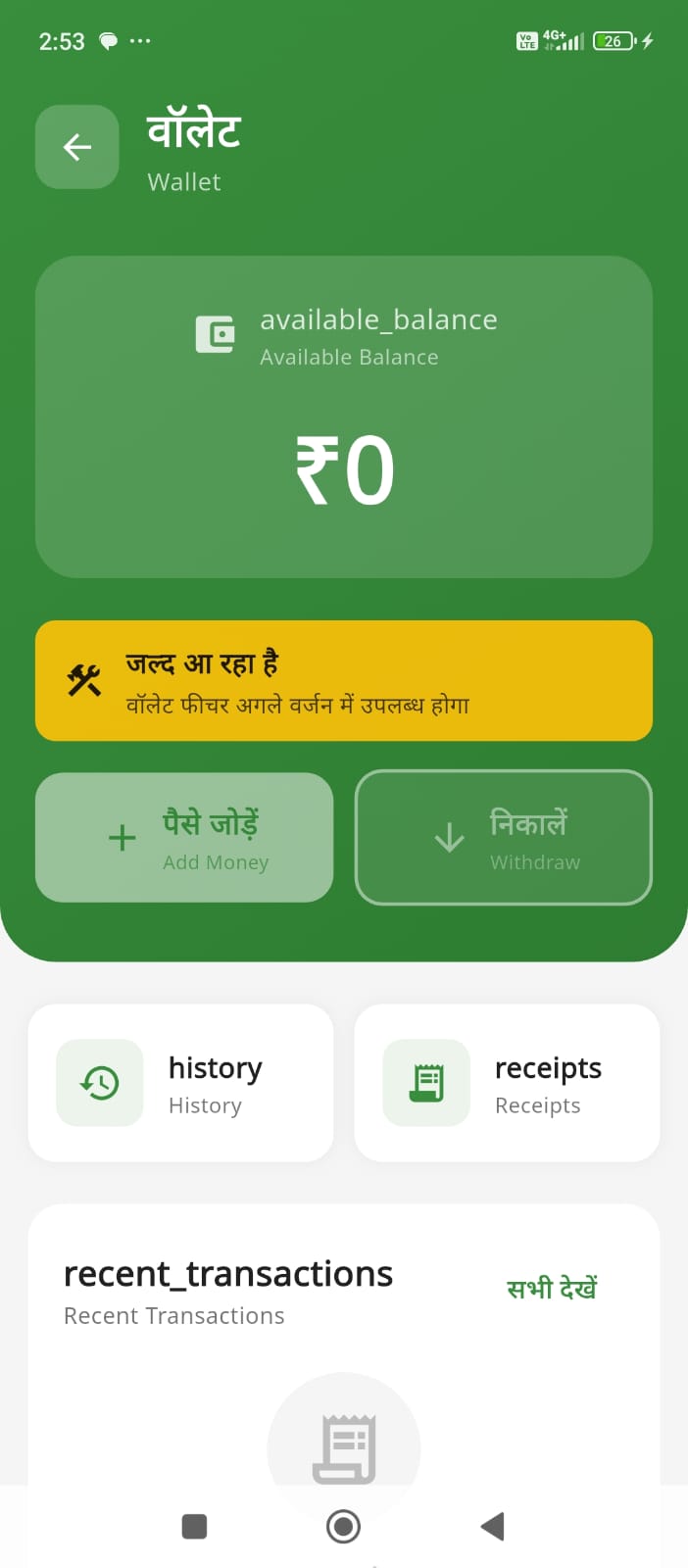
Your Wallet - manage payments and earnings
- Tap "Wallet" in Profile
- View your balance
- Add money or withdraw earnings
- See transaction history
Shopping Features
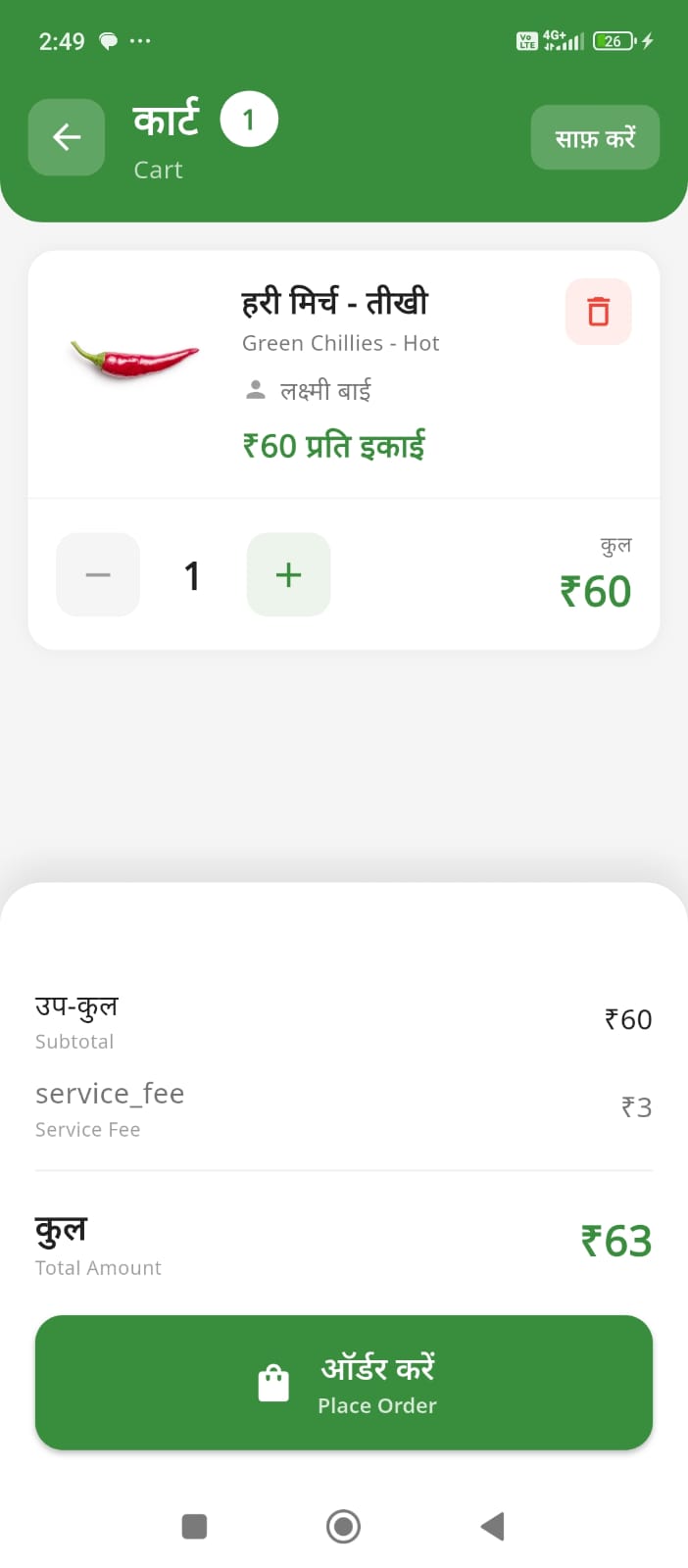
Shopping Cart
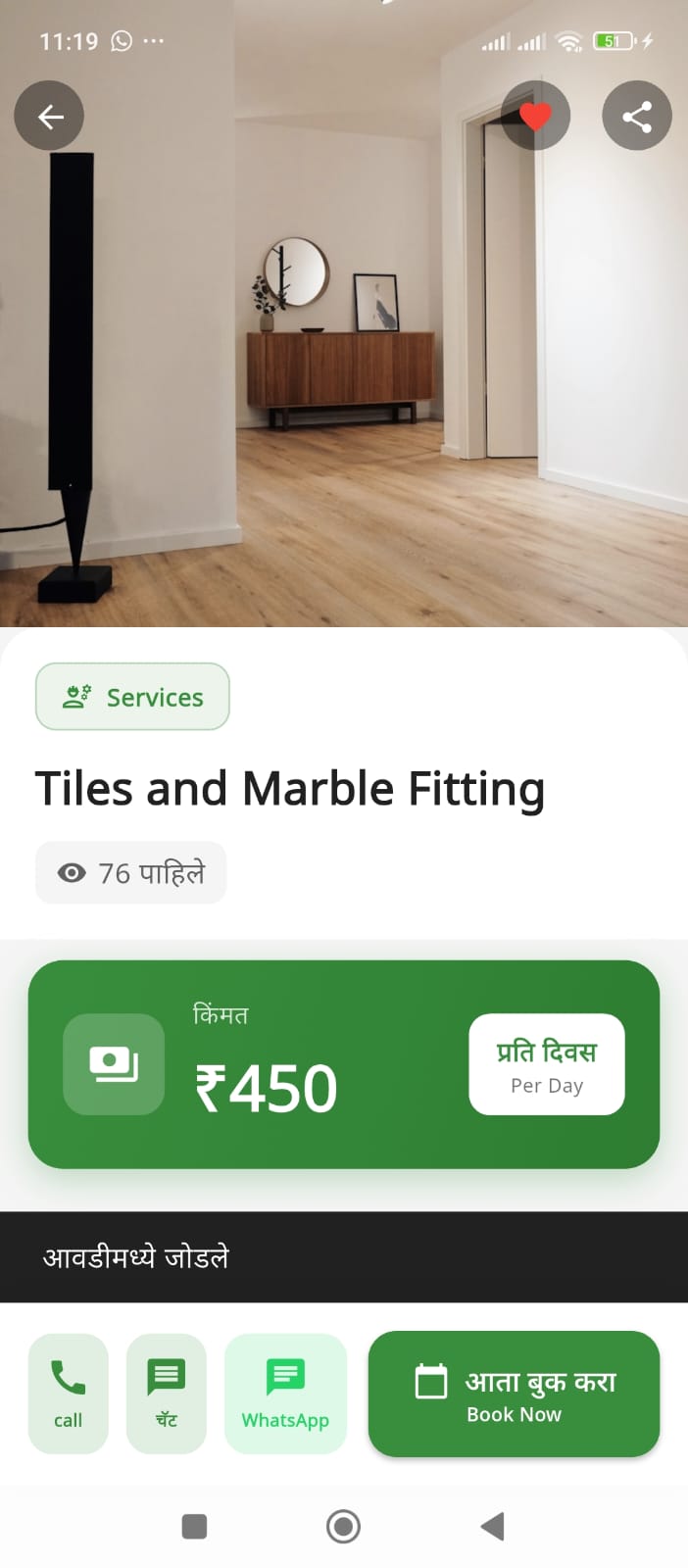
Your Favourites
💡Tips & Best Practices
For Service Seekers:
- ✅ Check ratings and reviews before booking
- ✅ Chat with provider to clarify details
- ✅ Be clear about your requirements
- ✅ Leave honest reviews after service
- ✅ Report any suspicious activity
For Service Providers:
- ✅ Keep profile and listings updated
- ✅ Respond quickly to inquiries
- ✅ Be professional and punctual
- ✅ Set realistic prices
- ✅ Ask for reviews from satisfied customers
🛡️ Safety Tips:
- Meet in public places when possible
- Don't share sensitive personal information
- Use in-app chat for communication
- Verify provider credentials
- Trust your instincts - report suspicious behavior
🔧Troubleshooting
Common Issues & Solutions
❌ Can't login / OTP not received
- Check your mobile number is correct
- Ensure you have network signal
- Wait 2-3 minutes for SMS
- Try "Resend OTP"
- Check if SMS is blocked by your phone
❌ App crashes or freezes
- Close and restart the app
- Clear app cache: Settings → Apps → KaryoSetu → Clear Cache
- Update to latest version from Play Store
- Restart your phone
❌ Can't upload photos
- Check if app has camera/storage permission
- Ensure photo size is less than 5MB
- Try taking a new photo instead of selecting from gallery
- Check your internet connection
❌ Not seeing nearby services
- Enable location services on your phone
- Grant location permission to KaryoSetu
- Check if you entered correct pin code in profile
- Try expanding search radius in filters
Need More Help?
If your issue isn't resolved:
- 📧 Email: hello@karyosetu.com
- 📱 In-app: Profile → Settings → Help & Support
- ⏰ Response time: Within 24 hours